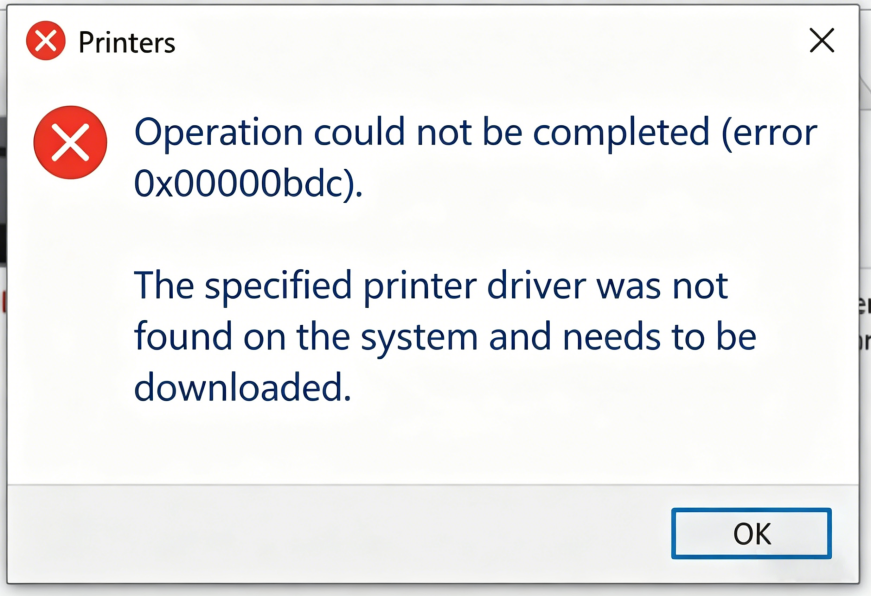
How to Fix Shared Printer Error 0x00000bcb on Windows 10 and 11
Error 0x00000bcb is a common shared printer connection failure on Windows 10 and Windows 11. When it appears, Windows displays a message saying the specified printer driver was not found and needs to be downloaded — but the download fails. This article explains exactly why error 0x00000bcb happens and how to fix it step by step.
What Is Error 0x00000bcb?
When you try to connect to a shared printer on your local network, Windows shows:
The operation could not be completed (Error 0x00000bcb). The specified printer driver was not found on this system and needs to be downloaded.

Windows automatically tries to install the printer driver from the host PC when you connect to a shared printer. Error 0x00000bcb means this automatic driver installation was blocked — most often by a security policy introduced in recent Windows Updates.
Why Does Error 0x00000bcb Happen?
There are five common causes:
- Windows Update tightened RPC security — Microsoft’s security patches restricted Point and Print driver installation to administrators only, blocking automatic driver download from shared printers.
- Missing or mismatched printer driver — The client PC lacks the correct printer driver, or the installed version does not match the one on the host.
- Print Spooler service error or corrupted print cache — A stuck or corrupted print job can prevent new drivers from being installed.
- Insufficient LAN permissions — The client PC does not have the rights needed to pull and install drivers from the host.
- Firewall or security software blocking shared communication — Third-party antivirus or Windows Firewall rules can block printer sharing traffic.
Solution
Step 1 — Modify the Registry (Point and Print Restriction)
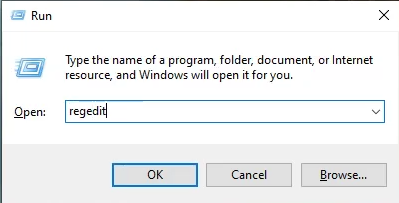
1. Press Win + R, type regedit, and press Enter to open the Registry Editor.
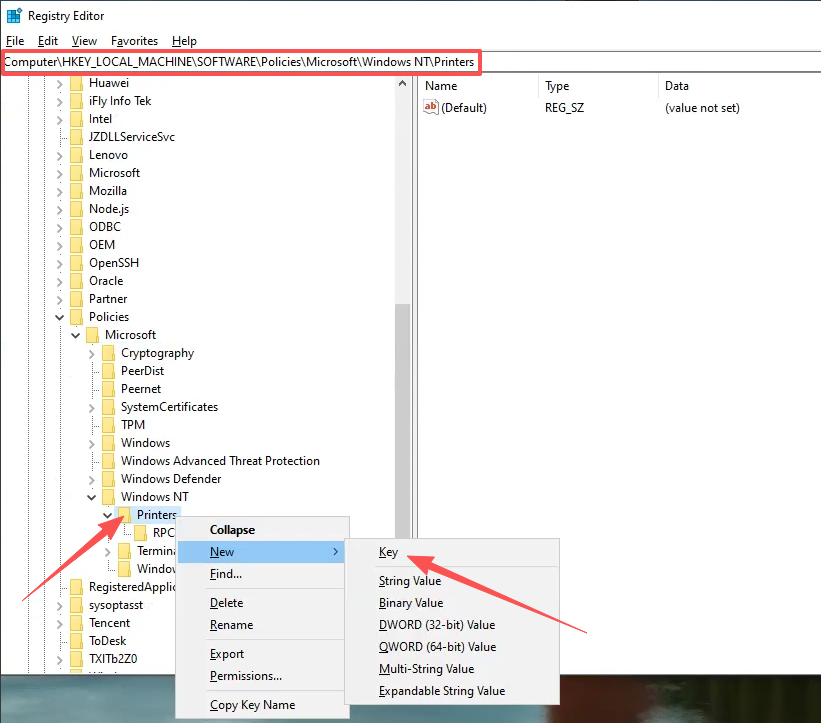
2. Navigate to the following path. If any part of the path does not exist, create the missing subkeys manually: right-click the parent key → New → Key.
HKEY_LOCAL_MACHINE\SOFTWARE\Policies\Microsoft\Windows NT\Printers\PointAndPrint
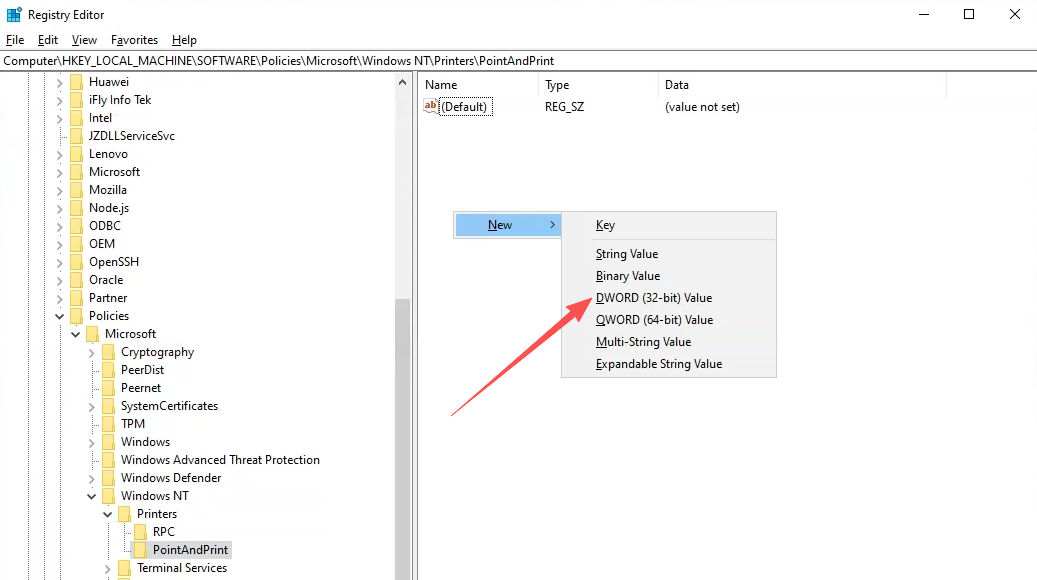
3. In the right pane, right-click and select New → DWORD (32-bit) Value. Name it RestrictDriverInstallationToAdministrators.
4. Double-click the new value and set its Value data to 0. Click OK.
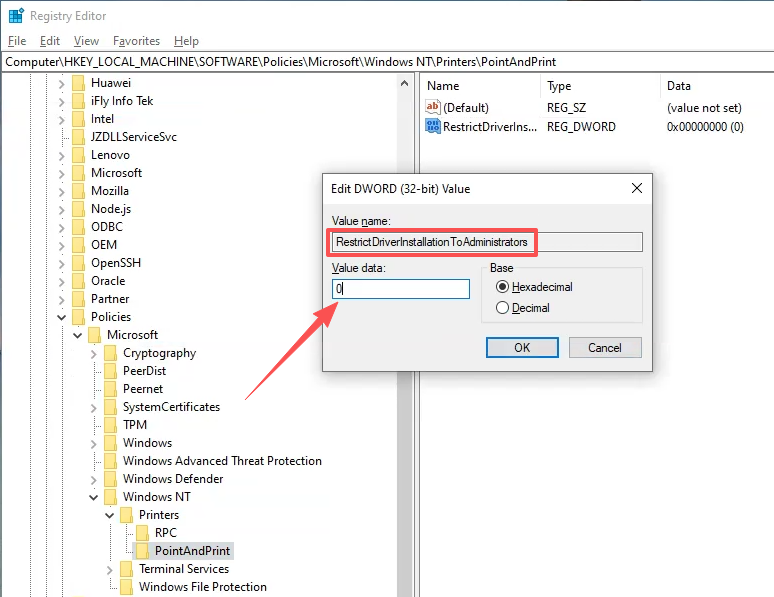
What this does: Setting this value to
0allows non-administrator users to install printer drivers via Point and Print, which is the mechanism Windows uses to automatically install shared printer drivers.
Step 2 — Remove the Old Printer Driver
5. Open Control Panel → Hardware and Sound → Devices and Printers. Click Print server properties in the top menu bar, then go to the Drivers tab. Select the old driver for the shared printer and click Remove.
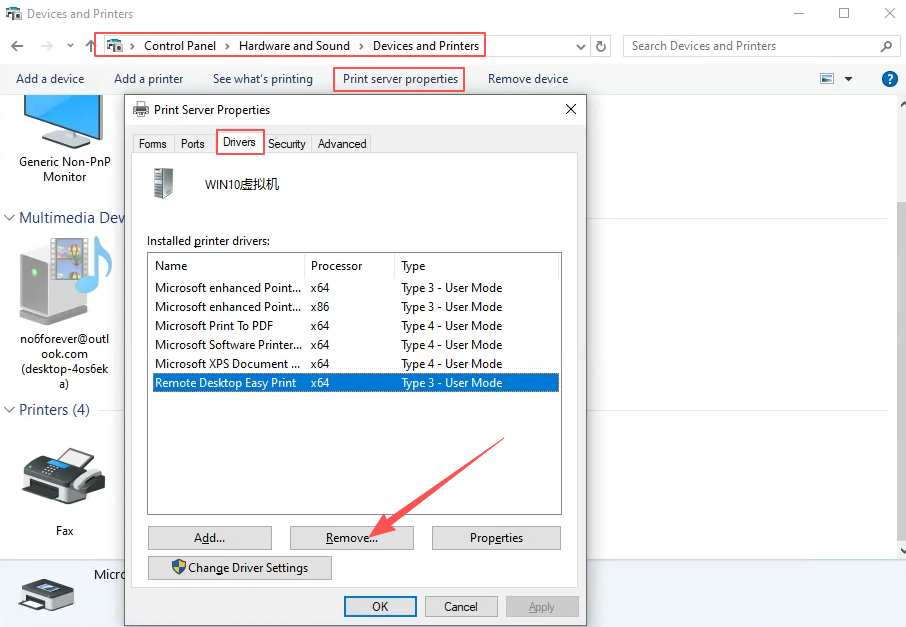
Removing the stale driver forces Windows to download a clean copy when you reconnect, preventing version conflicts that can also trigger error 0x00000bcb.
Step 3 — Restart and Reconnect
6. Restart your computer. After restarting, try adding the shared printer again. Windows should now be able to download and install the printer driver without showing error 0x00000bcb.
Frequently Asked Questions
Q: Does error 0x00000bcb affect Windows 10 only, or Windows 11 too? Both. Error 0x00000bcb appears on Windows 10 and Windows 11 because the underlying cause — a tightened Point and Print security policy — was applied to both systems via Windows Update.
Q: Is it safe to set RestrictDriverInstallationToAdministrators to 0? Yes, in a home or office LAN environment. This registry value only relaxes the driver installation permission for shared printers on your local network. It does not disable any other security features. If you are in a corporate environment managed by IT, check with your administrator before making registry changes.
Q: I followed all the steps but still get error 0x00000bcb. What else can I try? Try installing the printer driver manually on the client PC first (download it from the manufacturer’s website), then connect to the shared printer. This bypasses the automatic driver download entirely and often resolves the issue.
Q: Only some PCs on the network can’t connect — others work fine. Why? Computers that fail are usually missing a Windows security patch, have an incompatible driver version, or have a Group Policy setting that overrides the registry fix. Apply the registry change on each affected PC individually.
Q: Is error 0x00000bcb the same as error 0x00000709? They are different error codes but share similar root causes — both involve RPC policy restrictions and driver permission issues. The fixes are also similar. If the steps above do not resolve 0x00000bcb, refer to the 0x00000709 fix guide for additional methods.
Summary
Error 0x00000bcb when connecting to a shared printer on Windows 10 or Windows 11 is primarily caused by a Windows Update security policy that restricts automatic printer driver installation. The fix has three steps:
- Set
RestrictDriverInstallationToAdministrators=0in the registry underHKLM\SOFTWARE\Policies\Microsoft\Windows NT\Printers\PointAndPrint - Remove the old printer driver from Print Server Properties → Drivers
- Restart the computer and reconnect to the shared printer