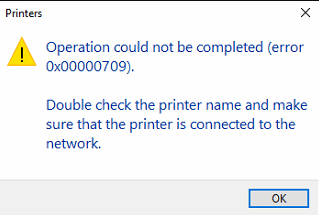
How to Fix Shared Printer Connection Error 0x00000709 on Windows
Error 0x00000709 is one of the most common shared printer errors on Windows 10 and Windows 11. It blocks users from connecting to a network-shared printer and can appear suddenly — often after a Windows Update. The good news is that this error can be fixed in a few minutes without any third-party software.
What Is Error 0x00000709?
When you try to connect to a shared printer on your local network, Windows may display:
The operation could not be completed (Error 0x00000709). Double-check the printer name and make sure the printer is connected to the network.

Error 0x00000709 is a permission or authentication error. Windows is trying to communicate with the printer host over the network but is being blocked due to missing credentials or an RPC protocol restriction.
Why Does Error 0x00000709 Happen?
There are three main causes:
- Missing network credentials — Windows does not have a saved username/password for the printer host machine, so access is denied.
- RPC protocol restriction — After certain Windows security updates, the default RPC communication method between computers changed, breaking shared printer connections.
- Guest account not recognized — The printer host’s Guest account is not trusted by the client machine, causing authentication to fail silently.
This error commonly appears on Windows 10 and Windows 11 clients connecting to a printer shared from another PC, regardless of whether the host is running Windows 7, 10, or 11.
Solution
The fix has two parts: first add the printer host’s credentials to Windows Credential Manager, then adjust an RPC registry value on the client machine.
Part 1 — Add Windows Credentials
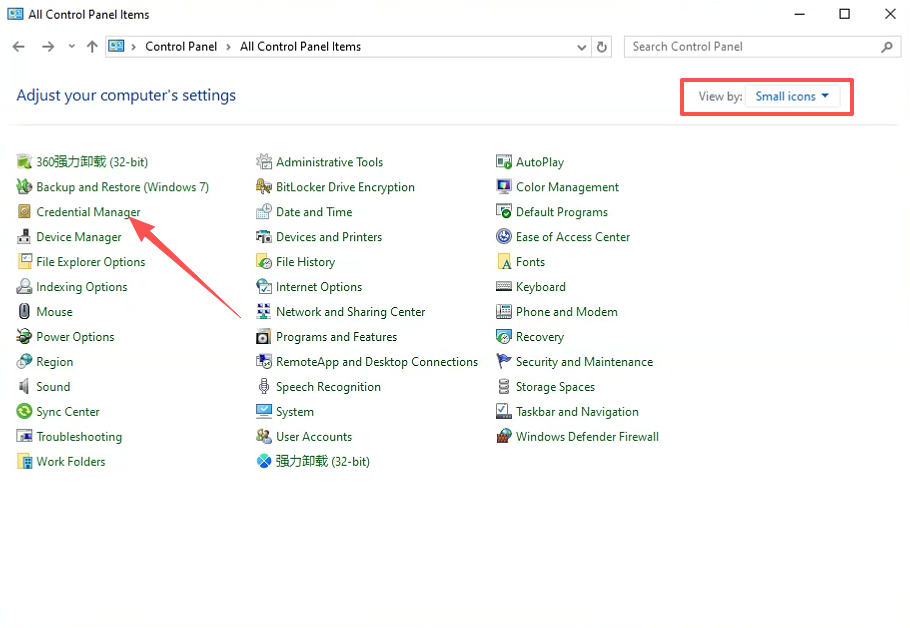
1. Open Control Panel, set the view to Small icons, then click Credential Manager.
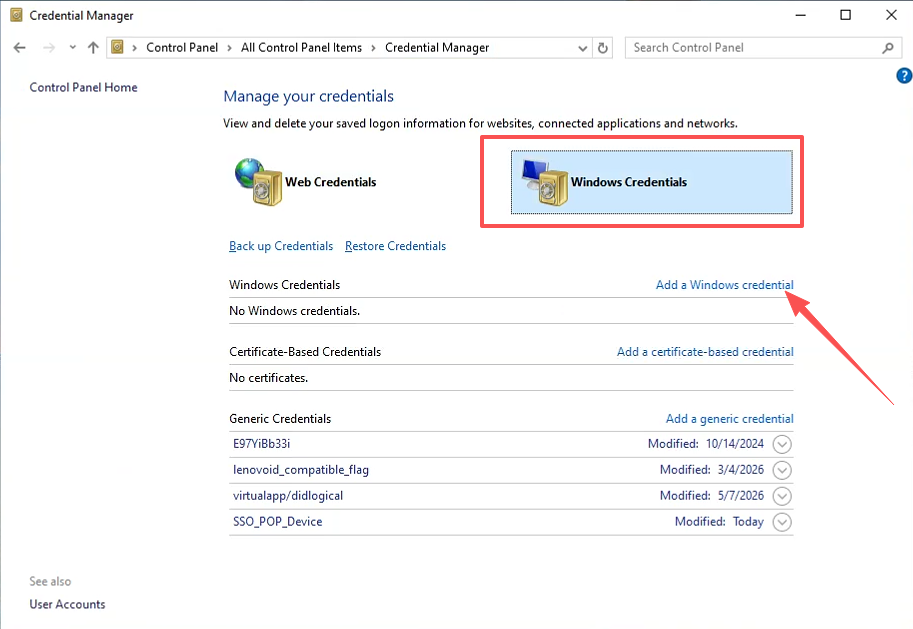
2. Select Windows Credentials, then click Add a Windows credential.
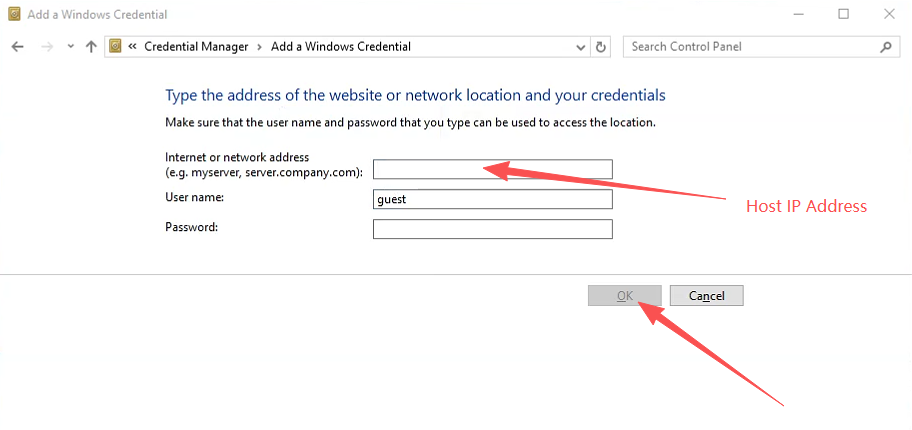
3. In the Internet or network address field, enter the host PC’s IP address (e.g. 192.168.1.100). Set the User name to guest and leave the Password field empty. Click OK.
Tip: You can find the host PC’s IP address by running
ipconfigin a Command Prompt on the host machine.
Part 2 — Modify the Registry
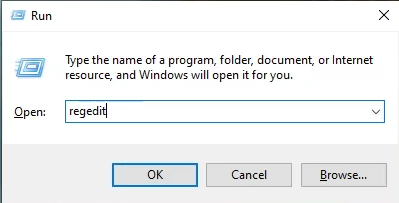
4. Press Win + R, type regedit, and press Enter to open the Registry Editor.
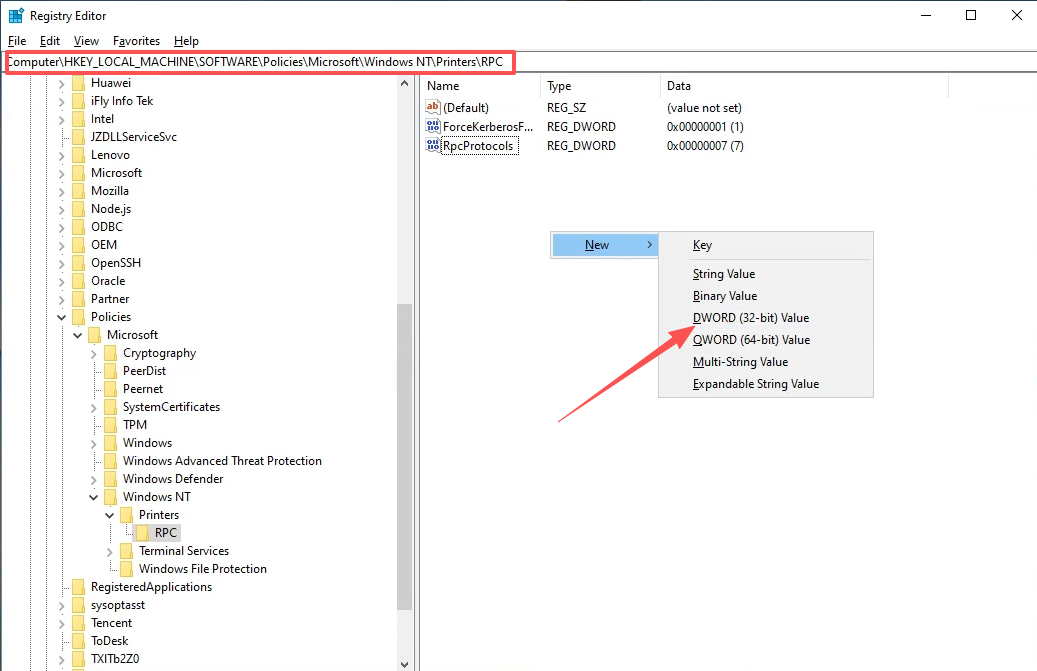
5. Navigate to the following key. If the RPC subkey does not exist, right-click on Printers and create it manually:
HKEY_LOCAL_MACHINE\SOFTWARE\Policies\Microsoft\Windows NT\Printers\RPC
Right-click in the right pane and select New → DWORD (32-bit) Value.
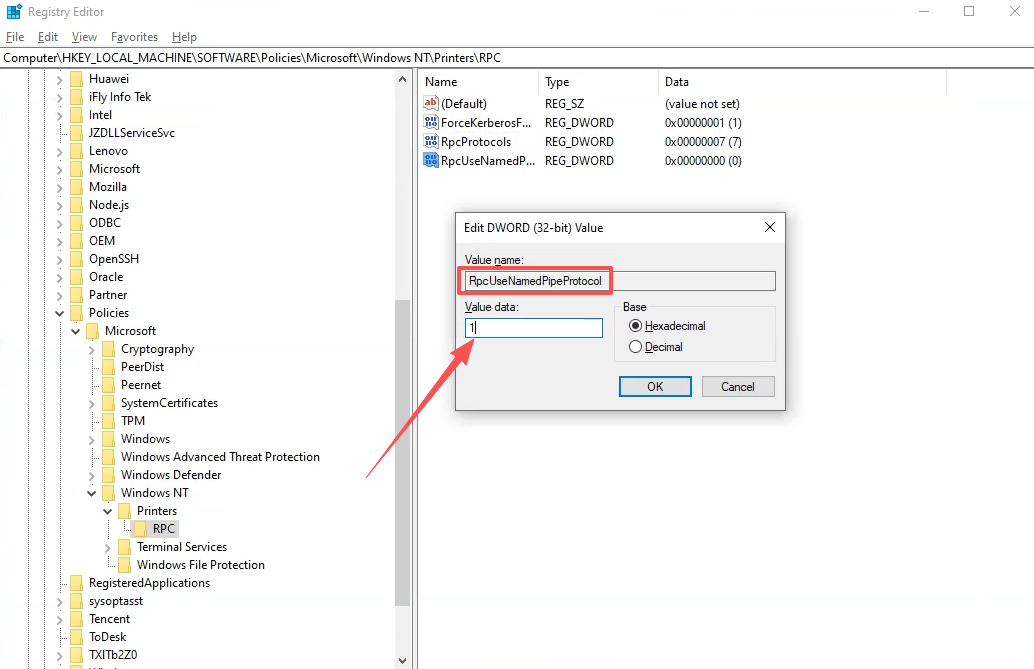
6. Rename the new value to RpcUseNamedPipeProtocol and set its Value data to 1. Click OK.
7. Once all steps are complete, restart your computer and try connecting to the shared printer again. Error 0x00000709 should no longer appear.
Frequently Asked Questions
Q: Does this fix work on both Windows 10 and Windows 11? Yes. Error 0x00000709 occurs on both Windows 10 and Windows 11 clients. The credential and registry steps above apply to both versions.
Q: Do I need to make changes on the printer host PC as well? Usually not. The fix described above is applied on the client PC (the one trying to connect). However, make sure the printer is properly shared on the host and that the Guest account is enabled there.
Q: The error still appears after following all steps. What should I try?
- Verify the host PC’s IP address is correct in Credential Manager.
- Make sure the host PC’s firewall is not blocking printer sharing (check File and Printer Sharing in Windows Firewall settings).
- Try connecting using the host’s PC name instead of its IP address (e.g.
\\DESKTOP-ABC123). - Reinstall the printer driver on the client machine and try adding the shared printer again.
Q: Will this registry change affect system security?
The RpcUseNamedPipeProtocol value enables Named Pipe as an additional RPC transport, which is a standard Windows mechanism. It does not disable any security features and is safe to apply in a home or office LAN environment.
Summary
Error 0x00000709 when connecting to a shared printer on Windows 10 or Windows 11 is typically caused by missing network credentials or an RPC protocol restriction introduced by Windows Updates. The two-step fix is:
- Add the printer host’s IP address and the guest account to Windows Credential Manager
- Create the registry value RpcUseNamedPipeProtocol =
1underHKLM\SOFTWARE\Policies\Microsoft\Windows NT\Printers\RPC
After restarting, the shared printer connection should work normally.