How to Fix Printer Sharing Error 0x000006d9 on Windows
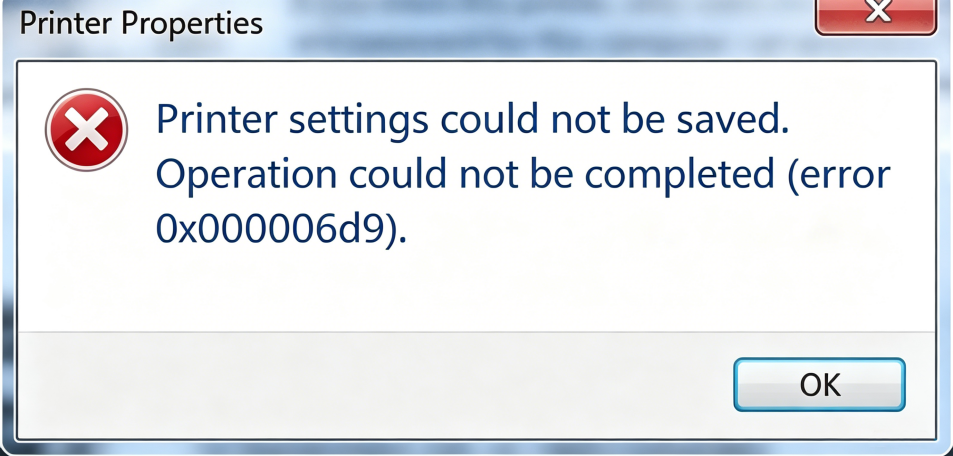
Error 0x000006d9 is a common Windows error that appears specifically when you try to share a printer — not when you use it. The printer connects and prints normally, but the moment you open sharing settings and click Apply, Windows throws:
Cannot save printer settings. Operation could not be completed (Error 0x000006d9).
This guide explains exactly why error 0x000006d9 happens and provides a clear step-by-step fix for Windows 10 and Windows 11.
What Is Error 0x000006d9?
When you enable printer sharing on Windows, the system relies on the Windows Firewall service to register and expose the shared printer on the network — even if you have the firewall itself turned off. If the Windows Firewall service is stopped or disabled, Windows cannot complete the sharing setup and returns error 0x000006d9.

The error message mentions “insufficient storage,” which is misleading. In the context of printer sharing, error 0x000006d9 has nothing to do with disk space. It always points to the Windows Firewall service not running.
Why Does Error 0x000006d9 Happen?
There are four common causes:
- Windows Firewall service is stopped — Printer sharing depends on this service being running, regardless of whether the firewall is enabled or disabled.
- Windows Firewall service is disabled — System optimization tools, slimmed-down Windows installations, or manual tweaks often disable this service entirely, causing error 0x000006d9 whenever printer sharing is attempted.
- Dependent services are not running — Services that depend on Windows Firewall (such as HTTP services and sharing-related services) may also be stopped or abnormal.
- Corrupted system files — In rare cases, missing or damaged system files prevent the Firewall service from starting.
Solution
Step 1 — Open the Services Manager
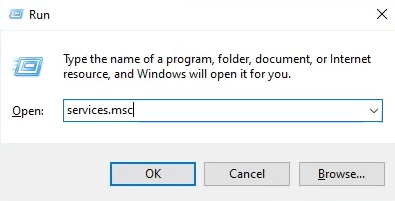
Press Win + R, type services.msc, and press Enter to open the Services window.
Step 2 — Find the Windows Firewall Service
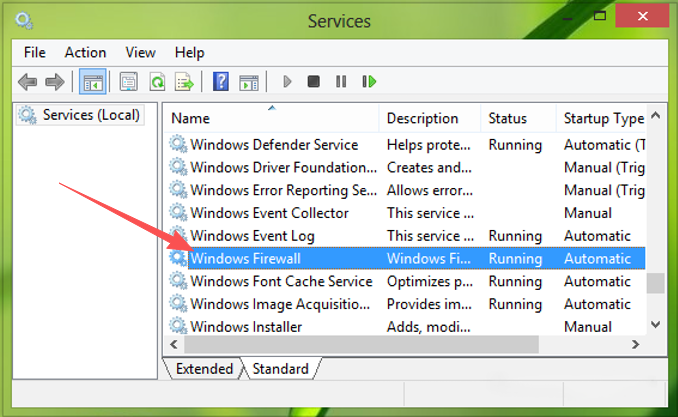
Scroll down the list to locate Windows Firewall (also listed as MpsSvc in some Windows versions).
Step 3 — Enable and Start the Service
Double-click Windows Firewall to open its properties. Set the Startup type to Automatic, then click Start. Click OK to save.
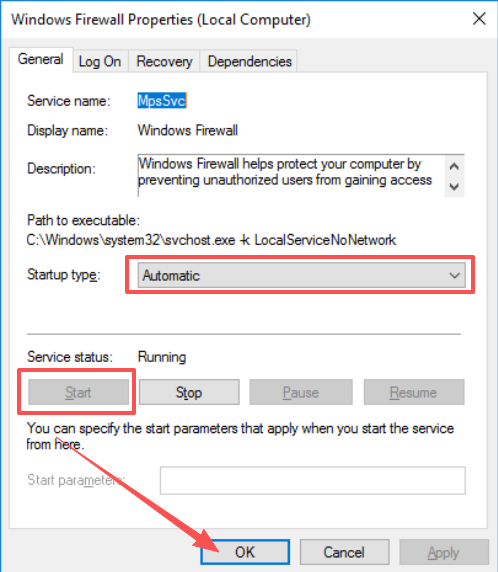
Important: Starting the Windows Firewall service does not turn on the firewall itself. You can still keep the firewall disabled in Windows Security settings — the service just needs to be running for printer sharing to work.
Step 4 — If Windows Firewall Is Not Listed
In some slimmed-down or customized Windows installations, the Windows Firewall service entry may be missing from the list. In that case, start these two related services first:
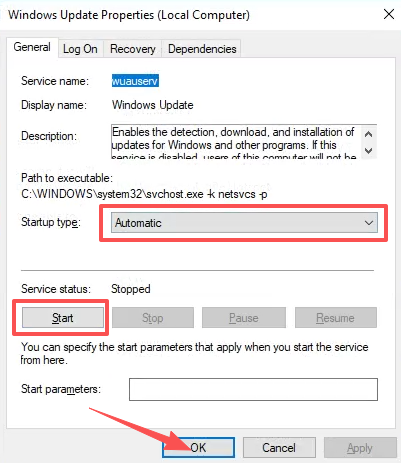
Windows Update: Double-click Windows Update in the Services list, set Startup type to Automatic, click Start, then click OK.
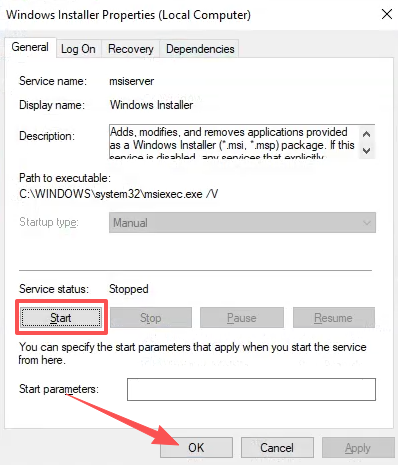
Windows Installer: Locate Windows Installer, double-click it, set Startup type to Automatic, click Start, then click OK.
Step 5 — Restart and Retry
Restart your computer. After restarting, open Services and check whether Windows Firewall now appears in the list. If it does, set it to Automatic and start it (as in Step 3). Then go back to your printer settings and enable sharing again — error 0x000006d9 should be gone.
Frequently Asked Questions
Q: Does error 0x000006d9 mean I am running out of disk space? No. Although the raw error message says “insufficient storage,” in the context of printer sharing this error code exclusively indicates that the Windows Firewall service is not running. It has nothing to do with disk space.
Q: I already turned off my firewall — why does the error still appear? Because Windows printer sharing does not check whether the firewall is on or off. It only checks whether the Windows Firewall service is running. The service must be running even if the firewall is disabled.
Q: Will starting the Windows Firewall service affect my computer’s security settings? No. You can still keep the Windows Firewall disabled in Windows Security → Firewall & network protection. Starting the service does not automatically enable the firewall — it just makes the underlying service available so that printer sharing can function.
Q: Error 0x000006d9 appeared only on one PC but not others on the same network. Why? The affected PC most likely had the Windows Firewall service disabled by a third-party optimization tool or a system tweak applied to that specific machine. Apply the fix on each affected PC individually.
Q: After the fix, do I need to keep the Windows Firewall service running permanently? Yes, for printer sharing to keep working. If the service is stopped again (for example after a system tool runs), error 0x000006d9 will return. Setting the startup type to Automatic ensures it starts with Windows every time.
Summary
Error 0x000006d9 when sharing a printer on Windows is caused by one thing: the Windows Firewall service is not running. The fix is straightforward:
- Open Services (
services.msc) - Find Windows Firewall, set Startup type to Automatic, and click Start
- Restart the computer and re-enable printer sharing
If Windows Firewall is missing from the service list, start Windows Update and Windows Installer first, then restart — Windows Firewall should reappear.