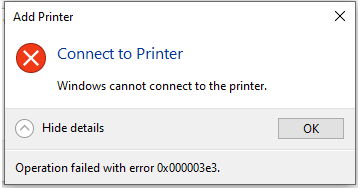
Problem Description
On Windows 10, when a user tries to connect to a shared printer on the local network, the connection fails with the following error code:
Error 0x000003e3

This is a common permission or authentication error that occurs when connecting to shared printers. It is typically caused by access being denied, a service anomaly, or a network protocol issue. Follow the steps below to resolve the problem.
Solution
Step 1 — Modify Local Security Policy
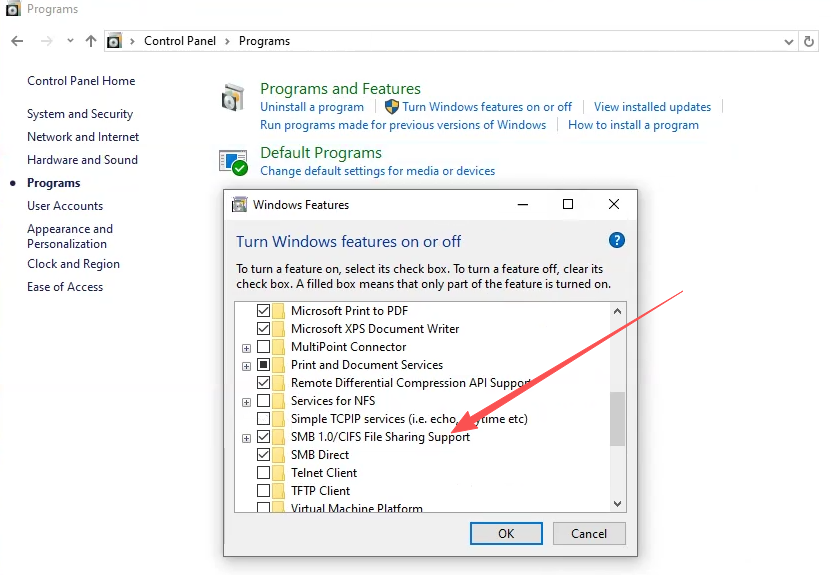
1. Open Control Panel → Programs → Turn Windows features on or off, then enable SMB 1.0/CIFS File Sharing Support.
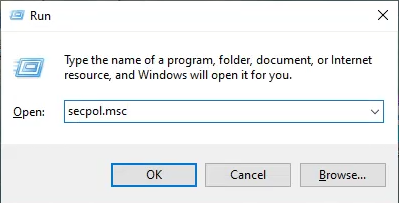
2. Press Win + R, type secpol.msc, and press Enter to open the Local Security Policy editor.
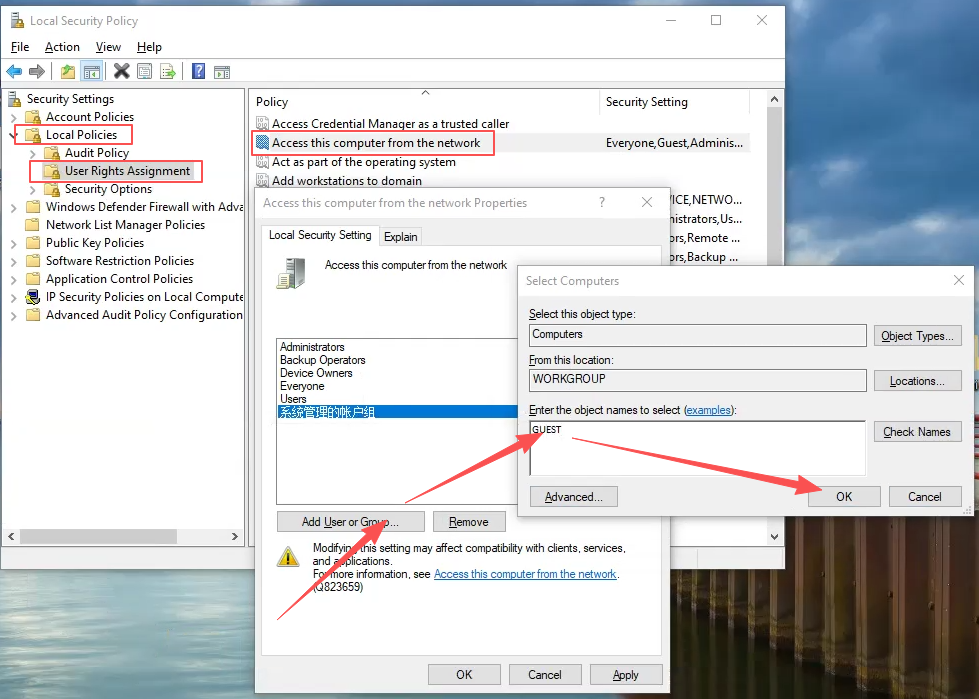
3. Navigate to Local Policies → User Rights Assignment → Access this computer from the network. Add the local Guest account to this policy.
Then go to Deny access to this computer from the network and remove the Guest account from that list.
4. Navigate to Local Policies → Security Options → Network access: Sharing and security model for local accounts, and set it to Guest only – local users authenticate as Guest.
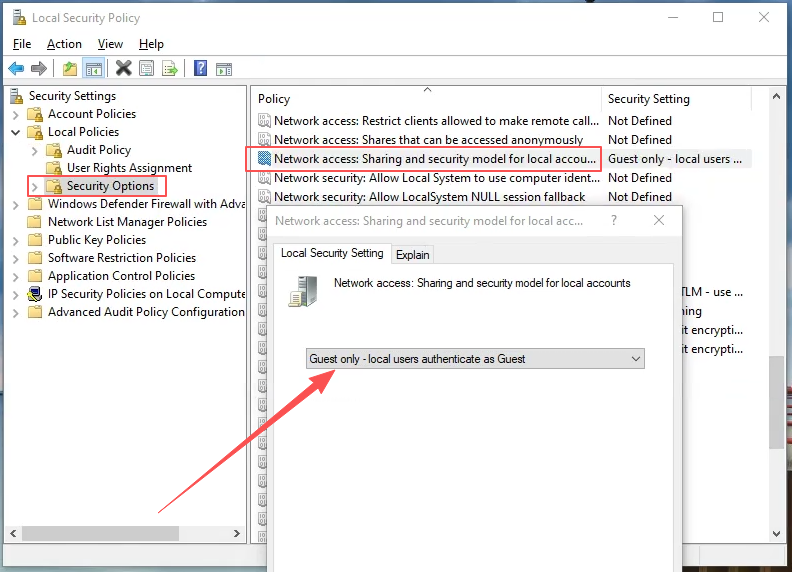
Step 2 — Modify Local Group Policy
1. Press Win + R, type gpedit.msc, and press Enter to open the Local Group Policy Editor.
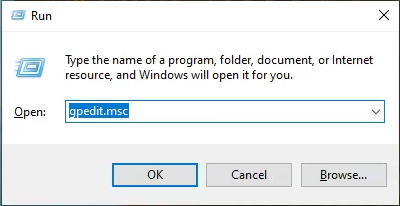
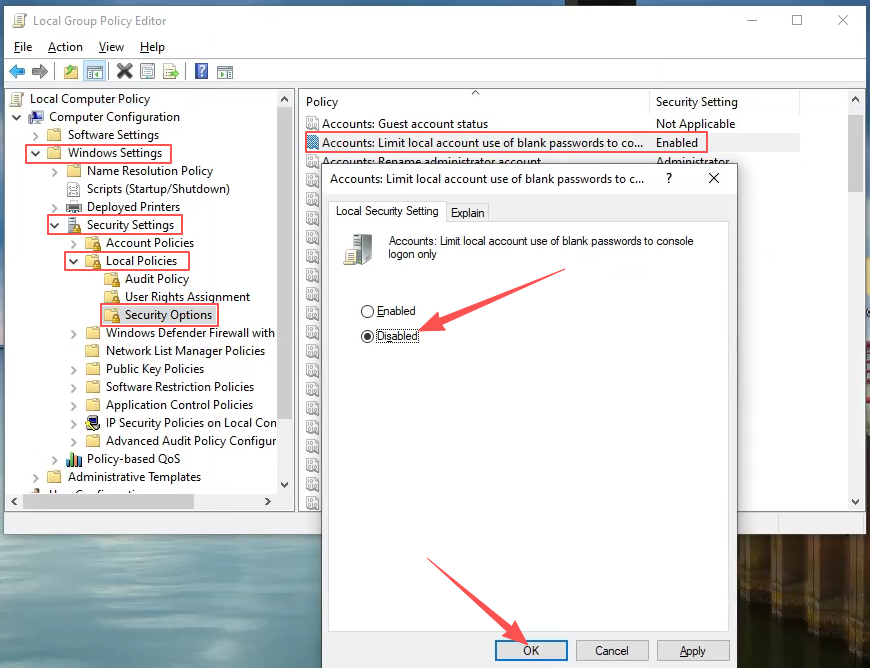
2. Navigate to Computer Configuration → Windows Settings → Security Settings → Local Policies → Security Options. Find the policy Accounts: Limit local account use of blank passwords to console logon only, double-click it, select Disabled, and click OK.
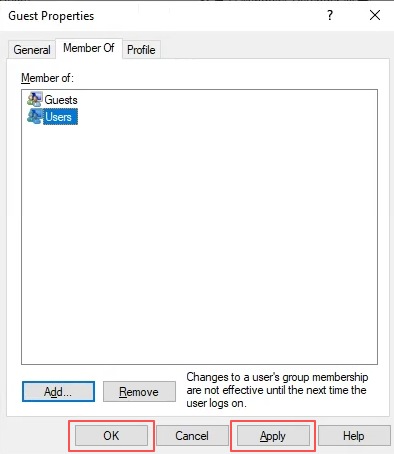
3. Open Computer Management, then go to System Tools → Local Users and Groups → Users. Double-click Guest, click the Member Of tab, then click Add. In the dialog box, type users and click OK.
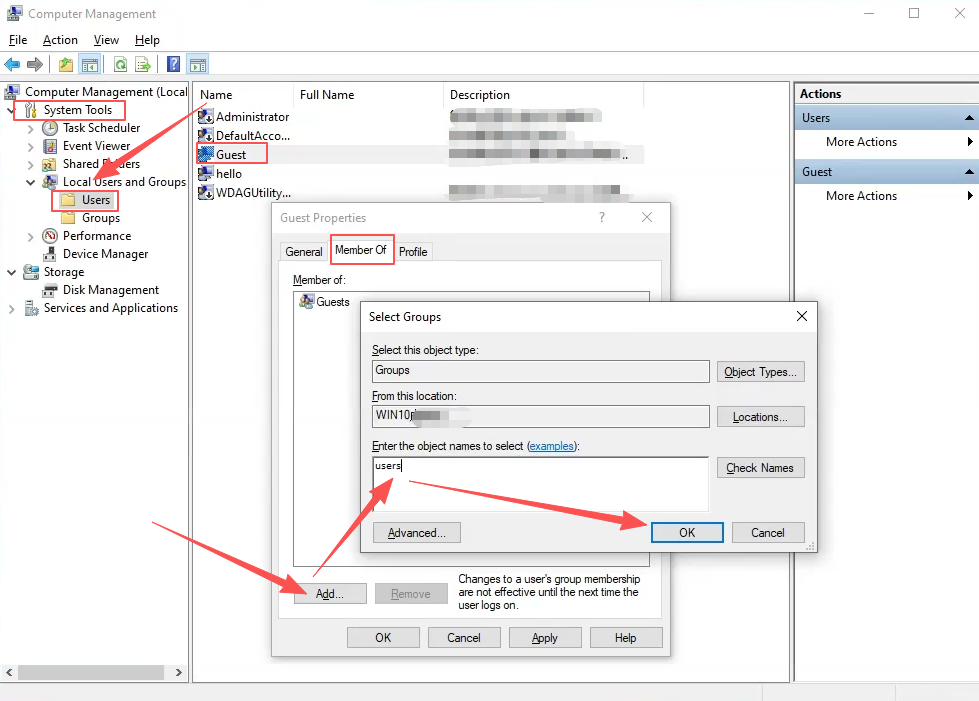
4. Back in the Guest Properties window, under Member Of, select Users, click Add, then click Apply and OK.
5. Once all the steps above are complete, restart your computer and try adding the shared printer again.
Summary
Error 0x000003e3 when connecting to a shared printer on Windows 10 is typically caused by permission mismatches in local security or group policy settings. The fix involves:
- Enabling SMB 1.0/CIFS file sharing support
- Granting the Guest account network access rights
- Setting the network sharing security model to Guest only
- Disabling the blank-password console-logon restriction
- Adding the Guest account to the local Users group
If the error persists after following all the steps above, also check:
- That the LAN connection is working correctly (the host and client must be on the same subnet and able to ping each other)
- That the shared printer host has matching settings configured
- Uninstalling and reinstalling the printer driver, then trying again
These steps resolve the vast majority of shared printer connection issues of this type.