How to Fix Shared Printer Error 0x0000007c on Windows 10 and 11
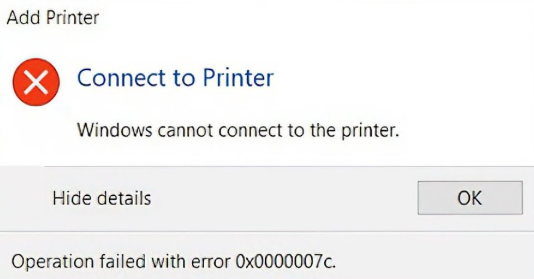
Error 0x0000007c — “The operation could not be completed” — is a common shared printer error on Windows 10 and Windows 11. It occurs when the client PC connects to a LAN shared printer and Windows fails to load the remote printer driver. This is a driver compatibility and SMB protocol issue, not a hardware failure or network outage. This guide explains every cause and walks through each fix in order.
What Is Error 0x0000007c?
When connecting to a shared printer on the local network, Windows displays:
The operation could not be completed (Error 0x0000007c).

Typical symptoms include:
- The error appears immediately when trying to add a LAN shared printer
- Network file shares on the same host PC are accessible — only the printer fails
- Older PCs connect to the shared printer fine; only newer Windows 10/11 PCs get the error
- Deleting and re-adding the printer does not fix the problem
Why Does Error 0x0000007c Happen?
There are six common causes:
- Remote driver mismatch — The printer driver version or architecture (32-bit vs. 64-bit) on the host PC does not match what the client PC requires. The client rejects the pushed driver as invalid.
- SMB protocol version incompatibility — Windows 10/11 defaults to SMB 3.0, while older host PCs or legacy drivers depend on SMB 1.0. The protocol mismatch causes driver transfer validation to fail.
- Driver signature verification block — Newer versions of Windows strictly enforce driver digital signature requirements. Older shared printer drivers without a valid signature are blocked from loading.
- Leftover driver conflict on the client — A previously installed driver for the same printer model left residual files that prevent the new remote driver from loading.
- Print Spooler cache corruption — Corrupt Spooler cache data prevents the service from receiving and installing the remote shared driver.
- Host PC missing bi-directional drivers — The host only has a driver installed for its own Windows version and has not added a matching driver package for the client PC’s architecture.
Solution
Work through the steps below in order. Most cases are resolved by Steps 1 and 2.
Step 1 — Clear the Print Cache and Restart the Print Spooler
1. Press Win + R, type services.msc, and press Enter. Find Print Spooler in the list, right-click it, and select Stop.
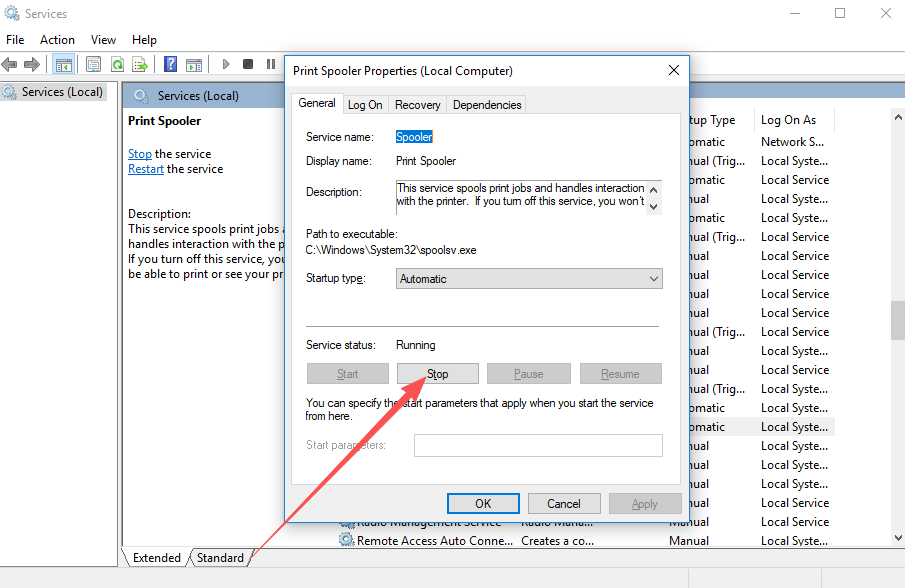
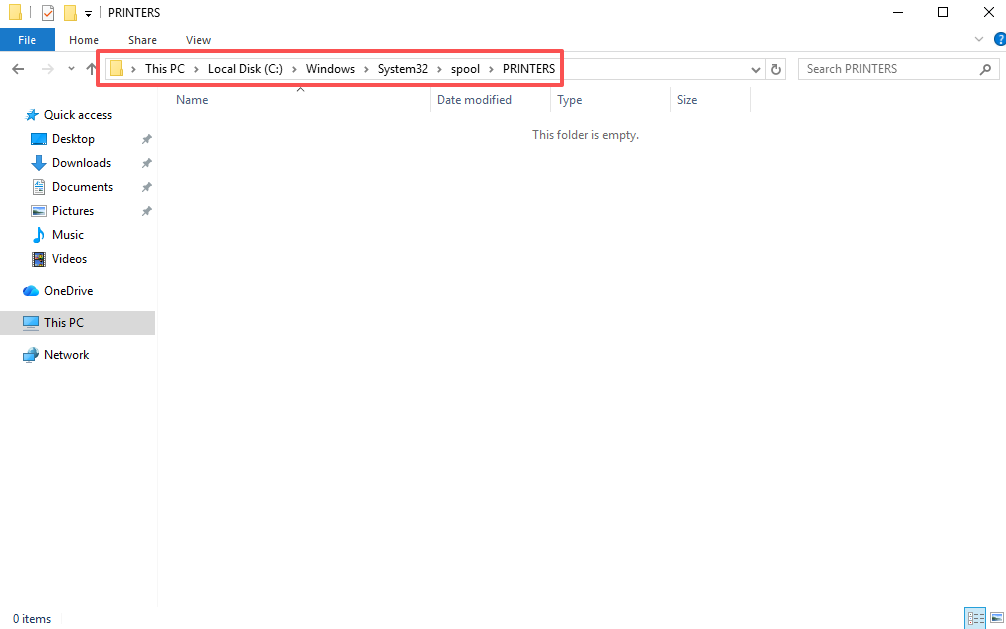
2. Press Win + R, type C:\Windows\System32\spool\PRINTERS, and press Enter. Delete all files inside the folder (do not delete the folder itself). Then return to Services and start Print Spooler again, setting Startup type to Automatic.
Step 2 — Completely Remove the Old Driver from the Client PC
1. Open Control Panel → Devices and Printers. Right-click every failed printer and select Remove device.
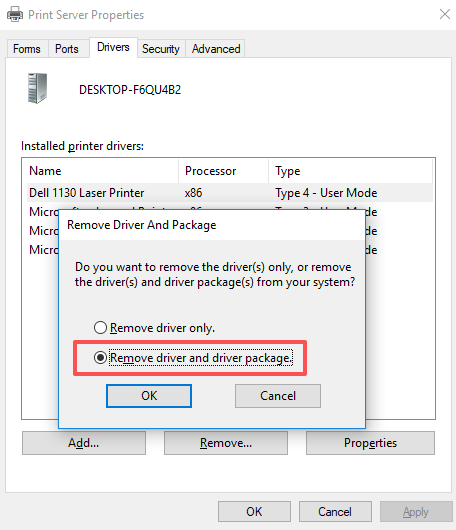
2. Press Win + R, type printui /s /t2, and press Enter to open Print Server Properties. Go to the Drivers tab, select the matching printer driver, click Remove, and choose Remove driver and driver package to fully delete all driver files.
3. Restart the computer. Download the correct full driver from the manufacturer’s website and install it manually before reconnecting to the shared printer.
Step 3 — Enable SMB 1.0/CIFS Protocol
If the host PC is running an older Windows version or uses older driver packages that depend on SMB 1.0:
1. Open Control Panel → Programs → Turn Windows features on or off.
2. Scroll down and check SMB 1.0/CIFS File Sharing Support. Click OK and restart the computer.
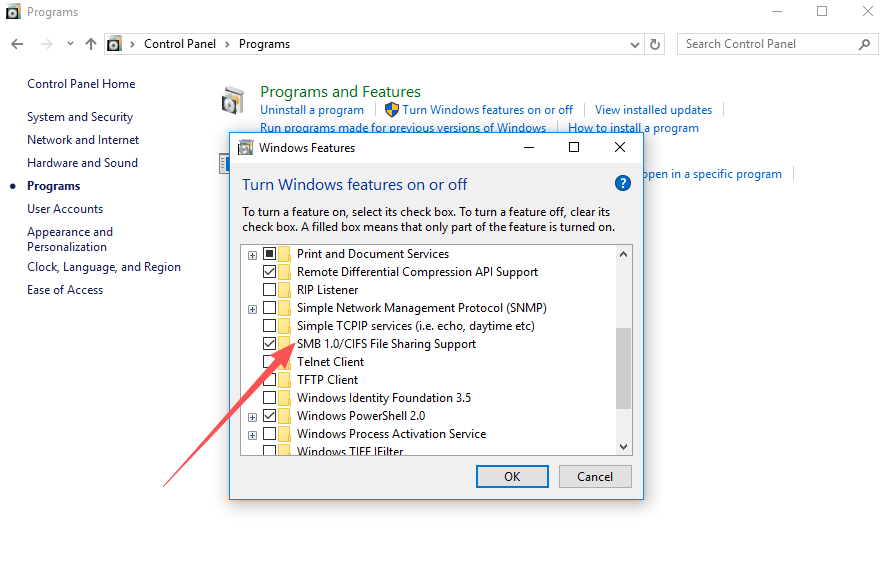
Security note: SMB 1.0 has known vulnerabilities. Enable it only as a temporary measure and disable it once the printer issue is resolved or upgrade the host PC’s driver to a version compatible with SMB 2.0/3.0.
Step 4 — Add Bi-Directional Drivers on the Host PC
If the client PC has a different Windows architecture (32-bit vs. 64-bit) from the host:
1. On the host PC, open Devices and Printers, right-click the shared printer, and select Printer properties → Sharing tab → Additional Drivers.
2. Check the architecture that matches the client PC (for example, check x86 if the client is 32-bit and the host is 64-bit), then click OK and install the corresponding driver package.
After the host has the matching driver, reconnect to the shared printer from the client PC.
Frequently Asked Questions
Q: What does error 0x0000007c mean? The official meaning is “the printer driver is invalid or the remote printer driver cannot be loaded.” In plain terms, the client PC’s Windows system does not accept the driver pushed by the host. This is caused by protocol incompatibility or a driver version mismatch, not by hardware failure.
Q: I can ping the host and access shared folders, but the printer gives error 0x0000007c. Why? Accessing shared folders only requires SMB network connectivity. Shared printer connections require both protocol compatibility and driver compatibility. A working network does not guarantee driver compatibility. Enable SMB 1.0 and manually install the local printer driver to resolve this.
Q: Old PCs connect to the shared printer fine. Why does my new Windows 10/11 PC get error 0x0000007c? Windows 10/11 disables SMB 1.0 by default and enforces stricter driver signature validation than older Windows versions. The older PCs work because they use more permissive compatibility settings. The new system blocks the legacy shared driver.
Q: I keep deleting and re-adding the printer but the error persists. What am I missing?
Deleting the printer device alone does not remove the driver files. You must delete the driver package using printui /s /t2. Restart the computer, then pre-install the correct driver manually before reconnecting to the shared printer.
Q: Do I need to edit the registry to fix error 0x0000007c? No, in the vast majority of cases. Error 0x0000007c is resolved by enabling SMB 1.0, cleaning the old driver package, and manually installing the correct driver — no registry editing required.
Summary
Error 0x0000007c when connecting to a shared printer on Windows 10 or Windows 11 means the client cannot load the remote printer driver due to driver or SMB protocol incompatibility. It is not related to printer hardware or system damage. Fix it in this order:
- Clear the print cache and restart Print Spooler
- Completely remove the old driver package via
printui /s /t2and reinstall manually - Enable SMB 1.0/CIFS if the host uses legacy driver packages
- Add bi-directional drivers on the host if the client and host have different Windows architectures