Problem Description
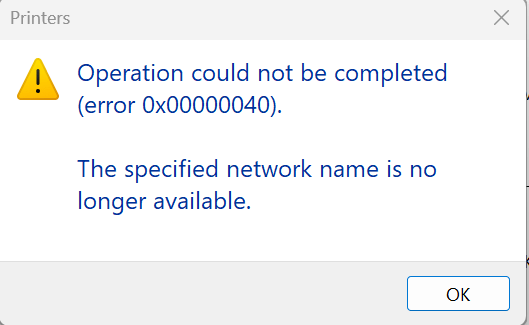
When a Windows 11 PC is used as the shared printer host, Windows 7 clients attempting to connect to that shared printer receive the following error:
The operation could not be completed (Error 0x00000040). The specified network name is no longer available.

This error is commonly caused by a disabled SMB service, an expired share name, a dropped network connection, or an RPC protocol mismatch between the two operating systems. The fix involves enabling SMB 1.0 support and updating two registry values on the Windows 11 host.
Solution
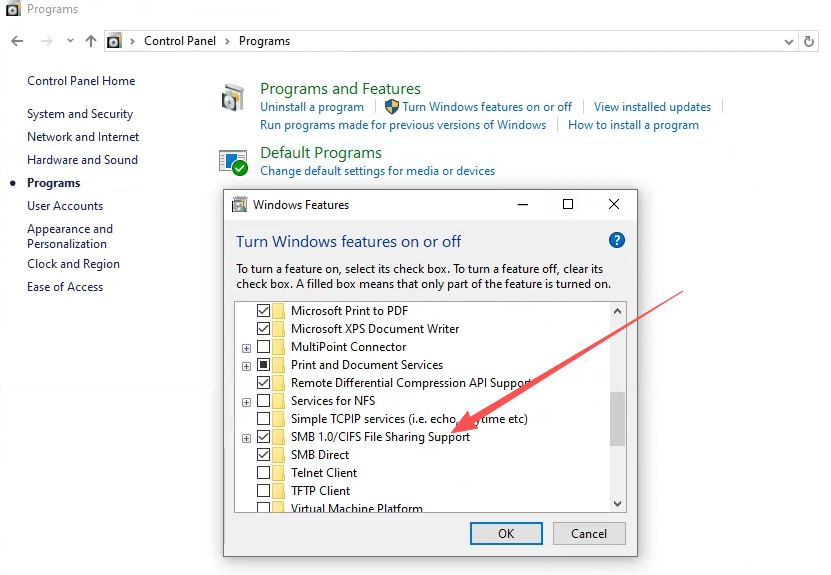
1. Open Control Panel → Programs → Turn Windows features on or off and enable SMB 1.0/CIFS File Sharing Support.
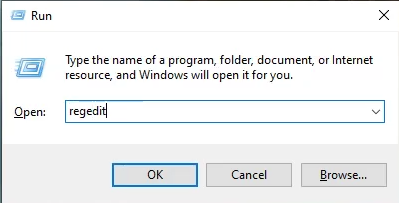
2. Press Win + R, type regedit, and press Enter to open the Registry Editor.
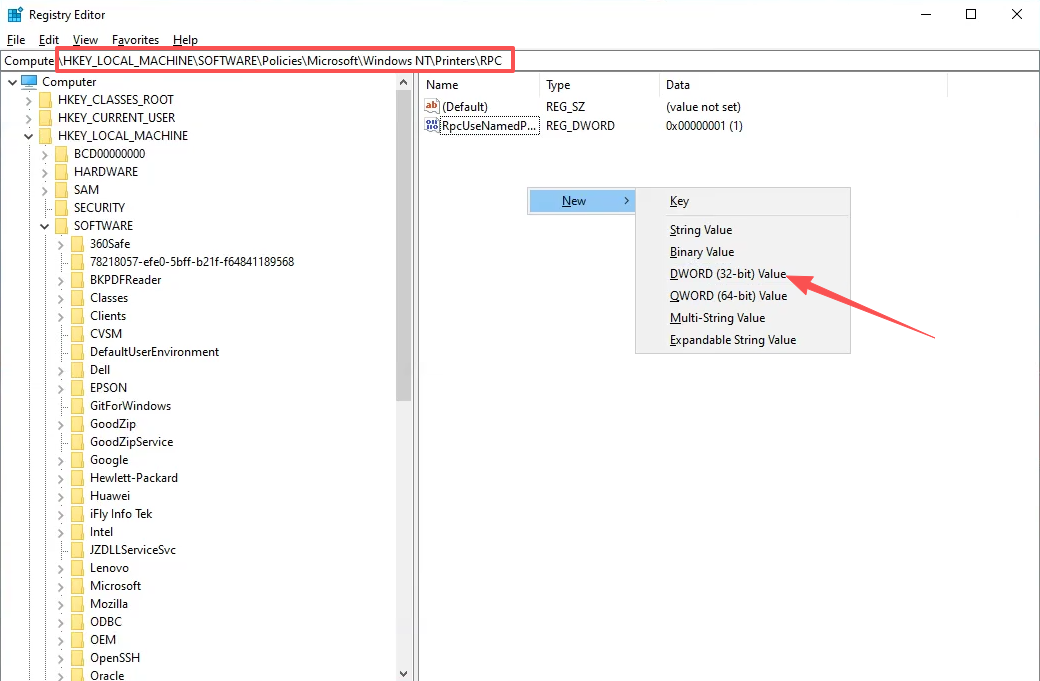
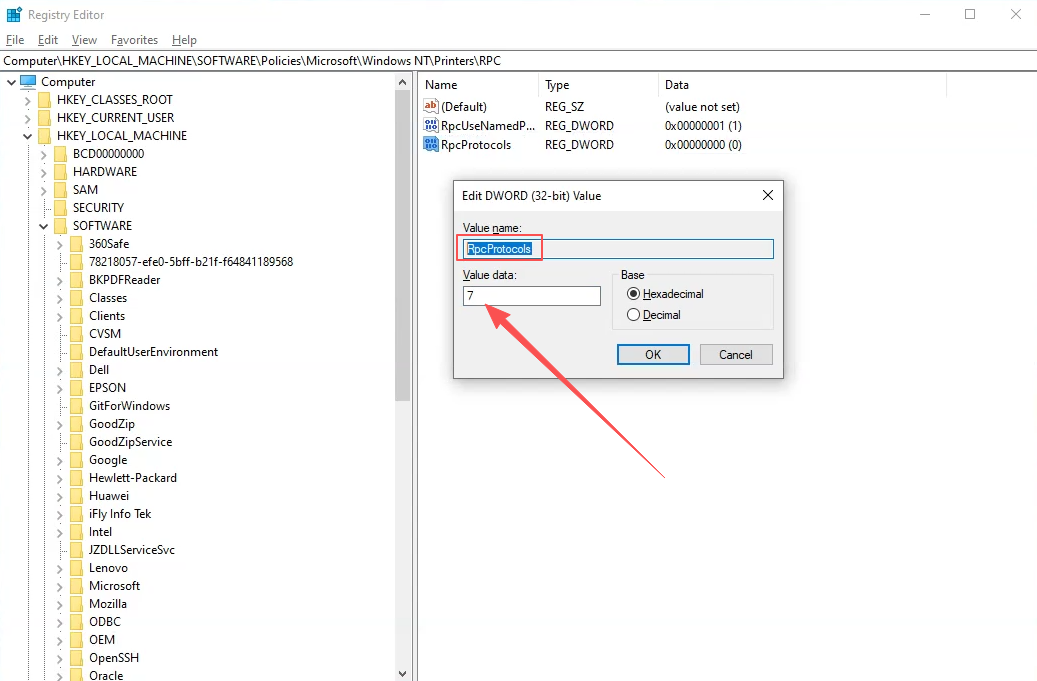
3. Navigate to the following key (create it if it does not exist):
HKEY_LOCAL_MACHINE\SOFTWARE\Policies\Microsoft\Windows NT\Printers\RPC
Right-click in the right pane and create a new DWORD (32-bit) Value.
4. Rename the new value to RpcProtocols and set its Value data to 7.
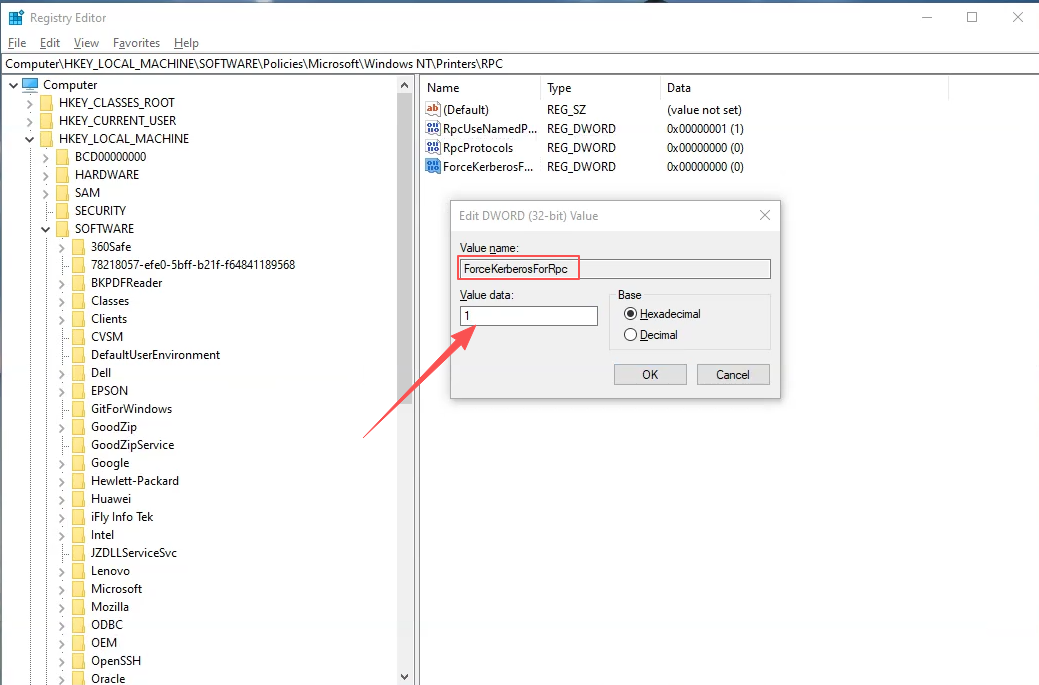
5. Right-click in the right pane again and create another new DWORD (32-bit) Value. Rename it to ForceKerberosForRpc and set its Value data to 1.
6. Once all steps are complete, restart the computer and try connecting to the shared printer again.
Summary
Error 0x00000040 when connecting to a shared printer is a common issue in mixed Windows 7 / Windows 11 environments. It is generally caused by a disabled SMB service or an RPC protocol mismatch. The fix involves two steps:
- Enabling SMB 1.0/CIFS File Sharing Support in Windows Features
- Adding the RpcProtocols (
7) and ForceKerberosForRpc (1) registry values underHKLM\SOFTWARE\Policies\Microsoft\Windows NT\Printers\RPC
After restarting, the shared printer connection should succeed normally.