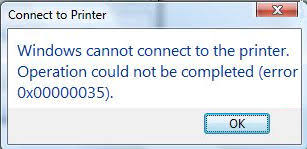
How to Fix Shared Printer Error 0x00000035 on Windows 10 and 11
Error 0x00000035 — “The network path was not found” — is one of the most common shared printer errors on Windows 10 and Windows 11. Unlike other printer errors that are caused by a single setting, error 0x00000035 can have multiple root causes, which makes it harder to diagnose. This guide walks through every cause and its fix in a logical order so you can resolve the issue as quickly as possible.
What Is Error 0x00000035?
When you try to connect to a shared printer on your local network, Windows displays:
The operation could not be completed (Error 0x00000035). The network path was not found.

Typical symptoms include:
- Entering the host PC’s IP address or computer name in the Run dialog immediately returns the error
- Some devices can ping the host IP successfully but cannot access shared resources
- Restarting the PC or reconfiguring printer sharing does not resolve the issue
- Other devices on the same LAN connect fine — only specific PCs trigger the error
Error 0x00000035 is also reported as 0x80070035 on some systems; both codes mean “network path not found” and are fixed the same way.
Why Does Error 0x00000035 Happen?
There are six common causes:
- Network environment issue — The host and client are not on the same LAN or subnet, or the network routing is broken.
- Network discovery and file sharing are disabled — The host or client has not enabled Network Discovery or File and Printer Sharing.
- Core sharing services are not running — The Server, Workstation, or TCP/IP NetBIOS Helper service is stopped or disabled.
- Firewall or security software is blocking traffic — Windows Firewall or a third-party antivirus is blocking SMB port 445.
- Network protocol or name resolution failure — NetBIOS is disabled, SMB 1.0/CIFS is not installed, or host name resolution fails.
- Stale network credentials — The client has cached incorrect credentials for the host PC that conflict with the current connection.
Solution
Work through the steps below in order — most cases are resolved by steps 1 or 2.
Step 1 — Check Network Connectivity
On the host PC, open Command Prompt and run ipconfig. Note the IPv4 address.
On the client PC, open Command Prompt and run:
ping <host IP address>
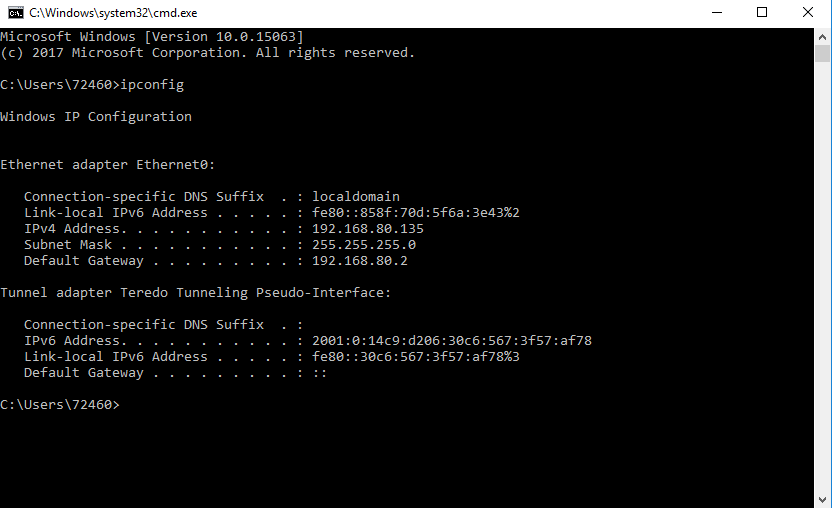
If the ping fails, check the router and network cables and make sure both devices are connected to the same network and subnet. Error 0x00000035 cannot be fixed without basic network connectivity.
Note: A successful ping does not guarantee shared access. If ping works but error 0x00000035 still appears, continue with the steps below.
Step 2 — Enable Network Discovery and File Sharing
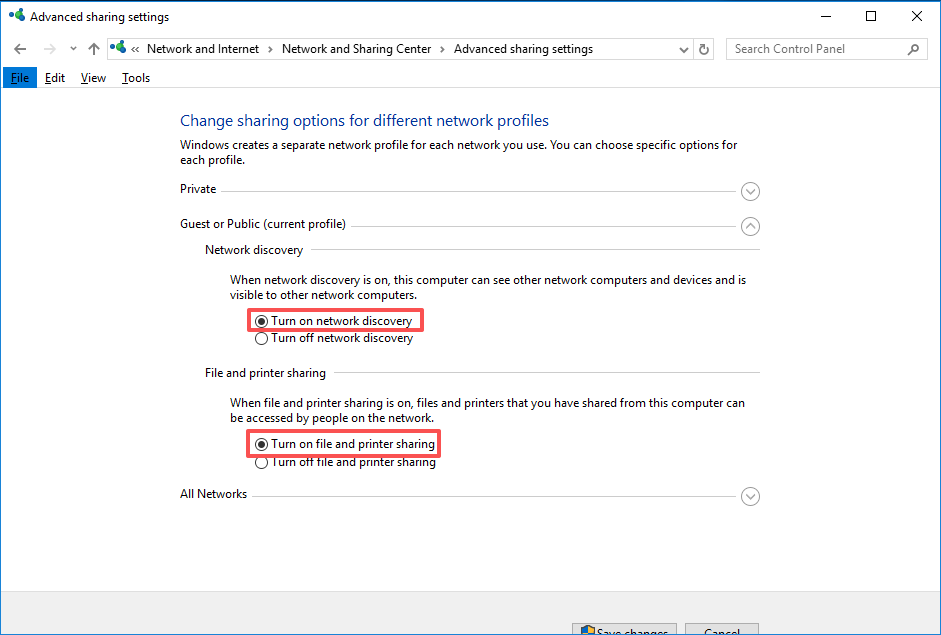
On both the host and client PC, go to Control Panel → Network and Sharing Center → Change advanced sharing settings. Under Private network, enable:
- Turn on network discovery
- Turn on file and printer sharing
Save the settings, then try connecting to the shared printer again.
Step 3 — Allow Printer Sharing Through the Firewall
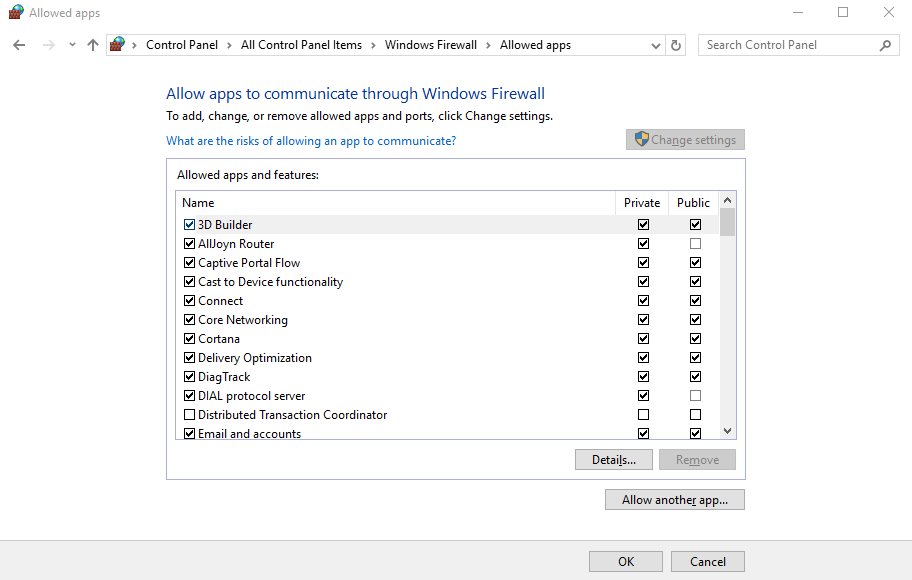
Open Windows Defender Firewall → Allow an app or feature through Windows Defender Firewall. Find File and Printer Sharing in the list and check both Private and Public network boxes.
If you use third-party antivirus software, temporarily disable it to check whether it is blocking the connection.
Step 4 — Fix Network Protocols and Access Settings
Open the Network adapter properties (right-click the network adapter → Properties). Make sure both Client for Microsoft Networks and File and Printer Sharing for Microsoft Networks are checked.
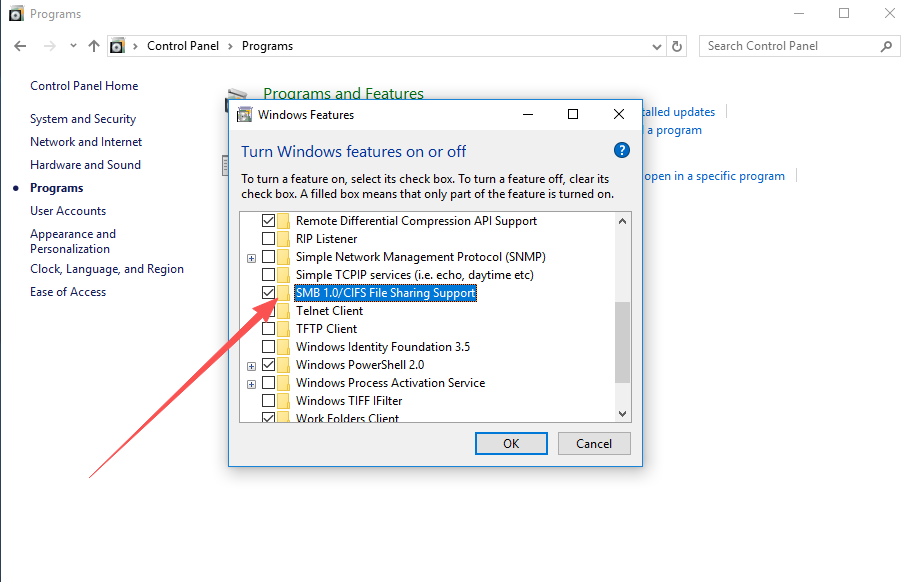
Also open Turn Windows features on or off and enable SMB 1.0/CIFS File Sharing Support, then restart the computer.
Step 5 — Clear Stale Network Credentials
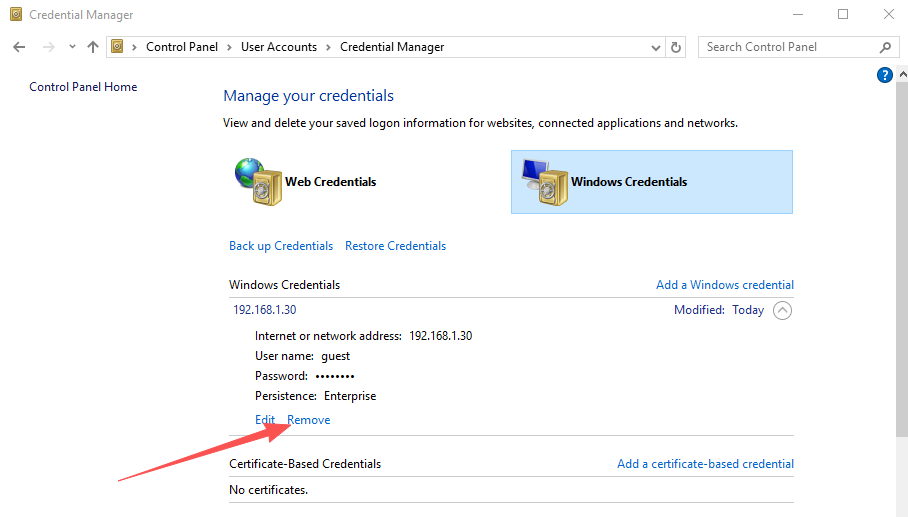
Press Win + R, type control keymgr.dll, and press Enter to open Credential Manager. Under Windows Credentials, delete all entries related to the host PC’s IP address or computer name.
After clearing the credentials, try reconnecting to the shared printer. Windows will prompt for credentials again, which allows a clean authentication.
Frequently Asked Questions
Q: Ping succeeds but error 0x00000035 still appears. Why? A successful ping only confirms basic IP connectivity. Error 0x00000035 is caused by sharing services, firewall rules, or protocol issues — not by the network cable. Focus on checking the Server service, firewall rules, and SMB protocol.
Q: Is error 0x00000035 the same as error 0x80070035? Yes. Both mean “The network path was not found.” The only difference is the format in which Windows reports the error code. The causes and fixes are identical.
Q: Only one client PC gets the error — all other devices work fine. What should I do? The problem is specific to that client PC. Clear its stale credentials, restart its local sharing services (Server and Workstation), and enable SMB protocol on it. No changes are needed on the host PC.
Q: After fixing the error, how do I prevent it from coming back? Set the Server, Workstation, and TCP/IP NetBIOS Helper services to start automatically. Also keep the printer share name simple — avoid special characters or spaces. These two practices prevent most recurrences of error 0x00000035.
Q: Does this fix also work for mapped network drives showing 0x00000035? Yes. The same causes and fixes apply to any “network path not found” error on the LAN, whether it is a shared printer, a shared folder, or a mapped drive.
Summary
Error 0x00000035 when connecting to a shared printer on Windows 10 or Windows 11 means Windows cannot locate the shared network path. It is not related to the printer hardware or driver. Fix it in this order:
- Verify network connectivity — ping the host IP; ensure both devices are on the same subnet
- Enable Network Discovery and File & Printer Sharing in advanced sharing settings
- Allow File and Printer Sharing through Windows Firewall
- Enable SMB 1.0/CIFS and check network adapter protocol settings
- Clear stale credentials in Credential Manager