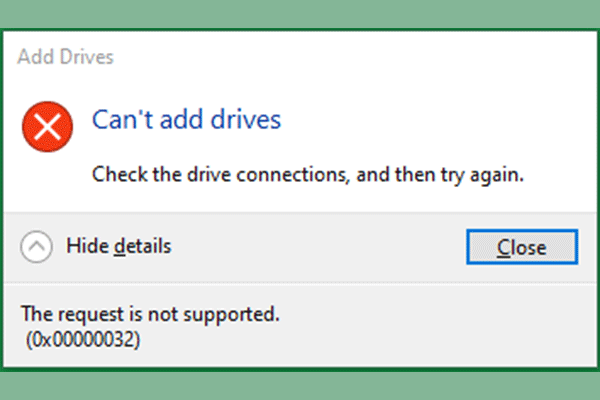
How to Fix Printer Error 0x00000032 on Windows 10 and 11
Error 0x00000032 — “The request is not supported” — is one of the most common printer driver errors on Windows 10 and Windows 11. It occurs when installing a local USB printer, connecting to a shared network printer, or updating a printer driver. Unlike network errors, error 0x00000032 is a driver-class failure: Windows is refusing to load, replace, or install the current printer driver. This guide explains every cause and walks through each fix in a logical order.
What Is Error 0x00000032?
When you install or connect to a printer, Windows displays:
The operation could not be completed (Error 0x00000032). The request is not supported.

Typical symptoms include:
- Adding a local USB printer fails immediately with this error
- Connecting to a LAN shared printer fails on one client PC but works on others
- Updating the printer driver triggers the error even after a fresh download
- The generic/universal driver installs fine, but the official driver returns 0x00000032
Why Does Error 0x00000032 Happen?
There are six common causes:
- Driver incompatibility (most common) — The driver version does not match the host PC’s driver, a 32-bit driver is mixed with a 64-bit system (or vice versa), or the driver does not support the Windows version. Windows judges the installation request invalid and blocks it.
- Leftover driver files locking the installation — Files and registry entries from a previously installed driver were not fully removed. The driver is held by the system and cannot be overwritten, triggering 0x00000032.
- Print Spooler service failure — The Spooler process is frozen or holding driver files open, preventing a new driver from being written or loaded.
- System driver installation policy block — Windows security policy is blocking unsigned or third-party drivers from being installed.
- Shared driver sync failure — When connecting to a LAN shared printer, the host PC does not have a matching driver for the client’s Windows version (especially 32-bit vs. 64-bit mismatches). Windows refuses the driver download request.
- Minor system file corruption — Missing or damaged print-related Windows components cause the driver installation interface to stop working.
Solution
Work through the steps below in order. Most cases are resolved by Steps 1 and 2.
Step 1 — Restart Print Spooler and Clear the Print Cache
1. Press Win + R, type services.msc, and press Enter.
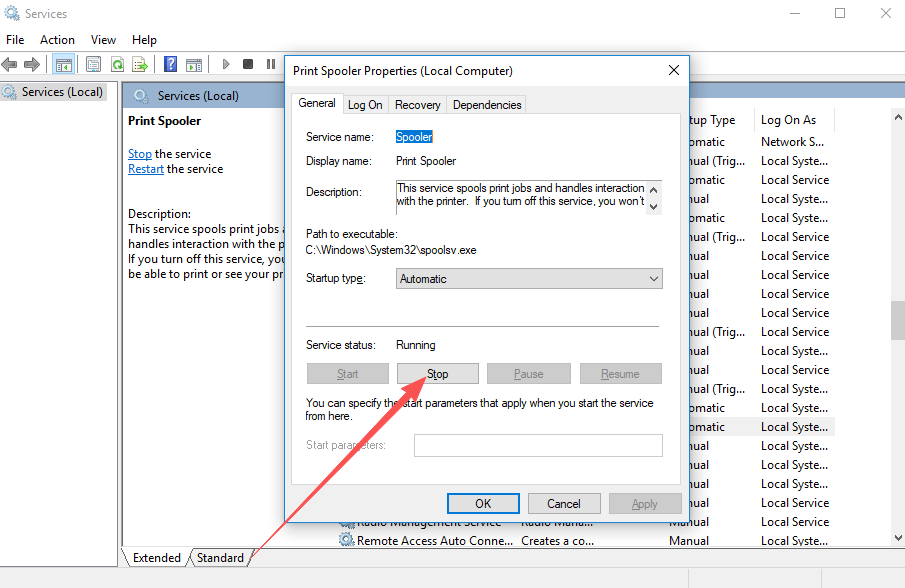
2. Find Print Spooler in the list, right-click it, and select Stop.
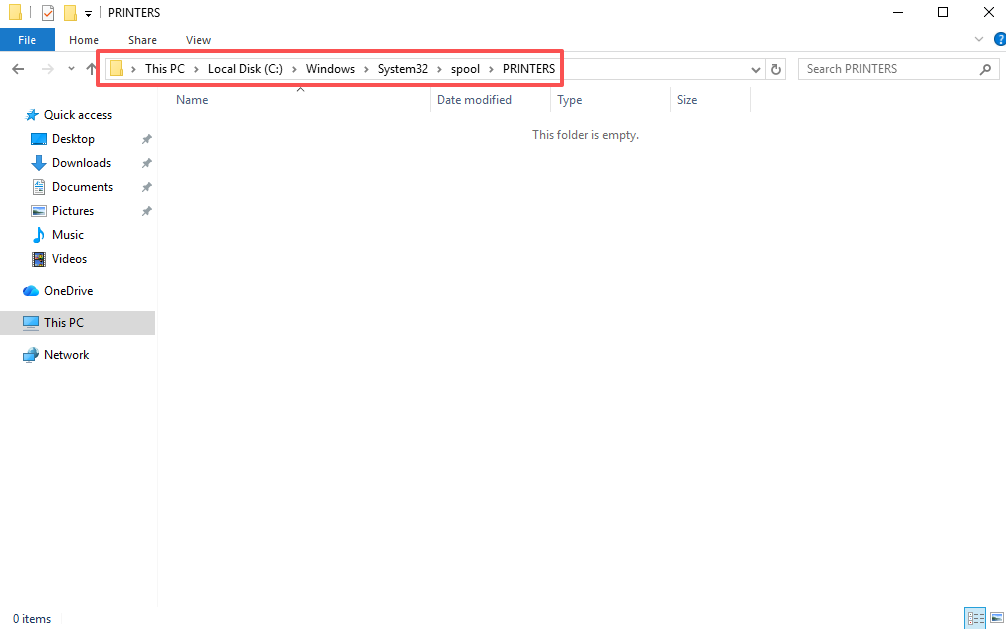
3. Press Win + R, type C:\Windows\System32\spool\PRINTERS, and press Enter. Delete all files inside the folder (do not delete the folder itself).
4. Return to Services, right-click Print Spooler, select Start, and set Startup type to Automatic.
Step 2 — Completely Remove the Leftover Driver Package
Error 0x00000032 is most often caused by a locked old driver. You must remove the complete driver package — not just the printer device:
1. Open Control Panel → Devices and Printers. Right-click every failed or duplicate printer and select Remove device.
2. Press Win + R, type printui /s /t2, and press Enter to open Print Server Properties. Switch to the Drivers tab. Select the driver for the problem printer, click Remove, then choose Remove driver and driver package to delete all driver files.
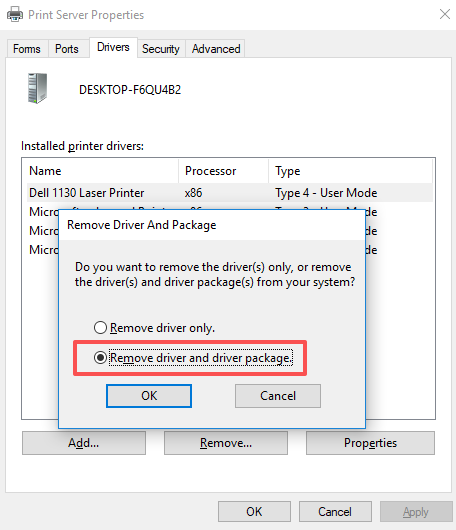
3. Restart the computer. Then download the correct full driver from the manufacturer’s website and install it.
Step 3 — Adjust System Policy to Allow Driver Installation
On Windows Professional and Enterprise editions, Group Policy may be blocking driver installation:
1. Press Win + R, type gpedit.msc, and press Enter. Navigate to Computer Configuration → Administrative Templates → Printers.
2. Disable Disallow installation of printers using kernel-mode drivers (if enabled).
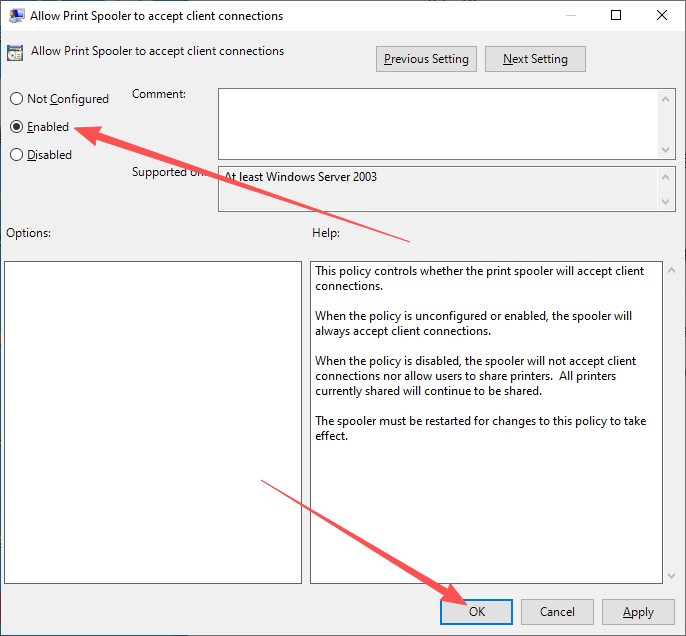
3. Enable Allow Print Spooler to accept client connections.
Step 4 — Fix Shared Printer Issues (LAN Connection)
If error 0x00000032 appears only when connecting to a shared printer on the local network:
1. On the host PC, add the additional driver package that matches the client PC’s Windows version (32-bit or 64-bit). Do this in Print Server Properties → Drivers → Add.
2. On the client PC, enable Enable insecure guest logon: open Local Group Policy → Computer Configuration → Administrative Templates → Network → Lanman Workstation and set Enable insecure guest logons to Enabled.
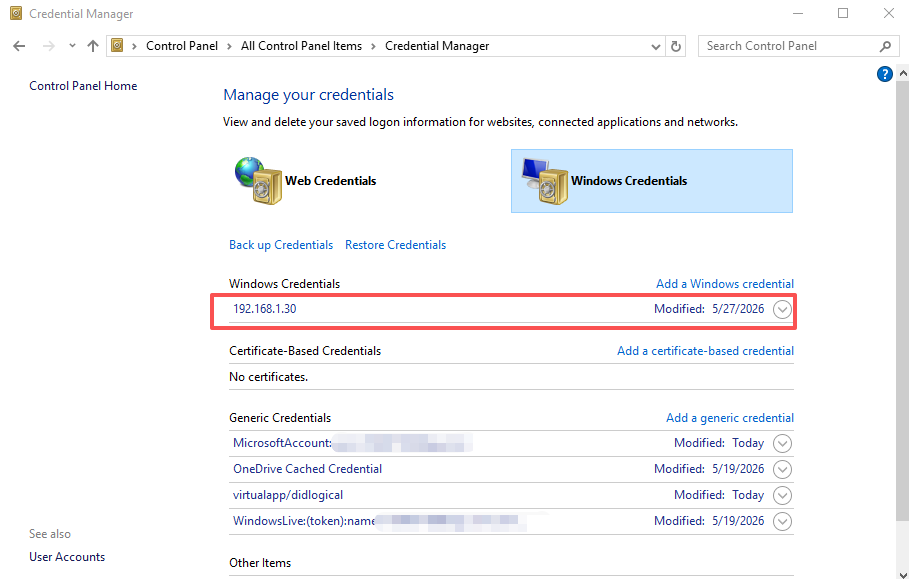
3. Clear stale network credentials on the client PC: press Win + R, type control keymgr.dll, open Credential Manager, and delete all entries related to the host PC’s IP address or computer name.
4. Reconnect using the host PC’s IP address directly: \\192.168.1.x.
Step 5 — Repair System Files
1. Search for cmd, right-click, and select Run as administrator.
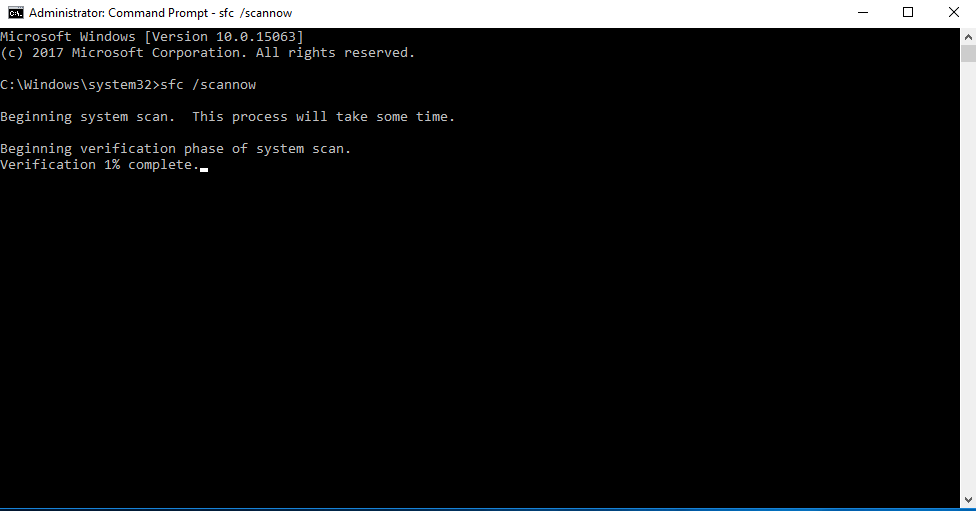
2. Run the following command and wait for it to complete:
sfc /scannow
3. Restart the computer and try installing the printer driver again.
Frequently Asked Questions
Q: What does error 0x00000032 “The request is not supported” actually mean? It means Windows is refusing the driver installation request. The system has determined that the request is invalid — most commonly because the driver does not match the system version, a conflicting old driver is locked in place, or a security policy is blocking the installation.
Q: The generic driver installs fine, but the official driver gives error 0x00000032. Why?
This is almost always caused by a locked leftover driver package from a previous installation. The generic driver uses a different installation path, which is why it works. Delete the full driver package via printui /s /t2, restart, then install the official driver.
Q: Other computers can connect to the shared printer — only mine gets error 0x00000032. What should I do? The problem is specific to your client PC’s driver environment. Other PCs have compatible drivers; yours has either an old driver conflict or a version mismatch. Clean the driver on your PC only (Steps 1 and 2) — no changes are needed on the host PC or printer.
Q: I reinstalled the driver several times but still get the error. What am I missing?
You most likely deleted the printer device but not the driver package. Simply removing the device from Devices and Printers leaves the driver files in place. Open printui /s /t2, go to the Drivers tab, and delete the driver package completely before reinstalling.
Q: Can a 32-bit/64-bit mismatch between the host and client cause error 0x00000032? Yes. If the host PC is 64-bit and the client is 32-bit, and the host has not added a 32-bit driver package, the client cannot download a matching driver and Windows returns “The request is not supported.” Add the missing architecture driver on the host PC in Print Server Properties.
Summary
Error 0x00000032 when installing or connecting a printer on Windows 10 or Windows 11 means Windows is refusing the driver installation request. It is not related to the network, printer hardware, or major system damage. Fix it in this order:
- Restart Print Spooler and clear the print cache
- Completely remove the old driver package via
printui /s /t2— this is the most common fix - Adjust Group Policy to allow driver installation (Professional/Enterprise editions)
- For shared printers: add matching architecture drivers on the host, enable guest logon on the client, and clear stale credentials
- Run
sfc /scannowto repair any corrupted system files