How to Fix Shared Printer Error 0x00000006 on Windows 10 and 11
Error 0x00000006 — “The handle is invalid” — is a common shared printer error on Windows 10 and Windows 11. It appears when Windows cannot generate or recognize a valid connection handle for the shared printer. Unlike network-path errors, error 0x00000006 is caused by problems with the Print Spooler service, printer drivers, or system components — not by the network itself. This guide walks through every cause and its fix in a logical order.
What Is Error 0x00000006?
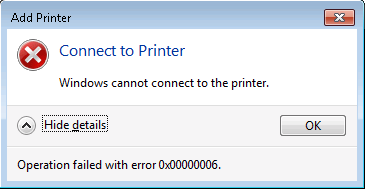
When you try to connect to a shared printer on your local network, Windows displays:
The operation could not be completed (Error 0x00000006). The handle is invalid.

Typical symptoms include:
- Clicking “Connect” when adding a shared printer immediately returns the error
- The printer is added successfully, but sending a print job triggers the error
- The printer connection drops and error 0x00000006 appears when reconnecting
- Other devices on the same network print fine — only specific PCs trigger the error
Why Does Error 0x00000006 Happen?
There are five common causes:
- Print Spooler service failure — The most common cause. If the Spooler service crashes, freezes, or has corrupt cache files, Windows cannot generate a valid connection handle.
- Printer driver issues — The client PC is missing the correct driver, has an incompatible driver version, or has leftover files from an old driver that conflict with a new installation.
- Corrupted system files or print components — Failed Windows updates, aggressive system cleanup tools, or antivirus software deleting print-related system files can cause this error.
- Network sharing or path issues — The printer share name contains Chinese characters, spaces, or special symbols, or the host IP address cannot be resolved by the client.
- Permission or security policy blocks — The client lacks permission to access shared resources on the host PC, or Windows Firewall / third-party security software is blocking the printer sharing communication.
Solution
Work through the steps below in order — most cases are resolved by Step 1 or Step 2.
Step 1 — Restart Print Spooler and Clear the Print Queue
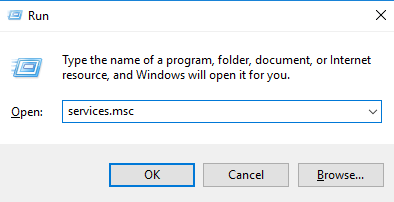
1. Press Win + R, type services.msc, and press Enter to open the Services window.
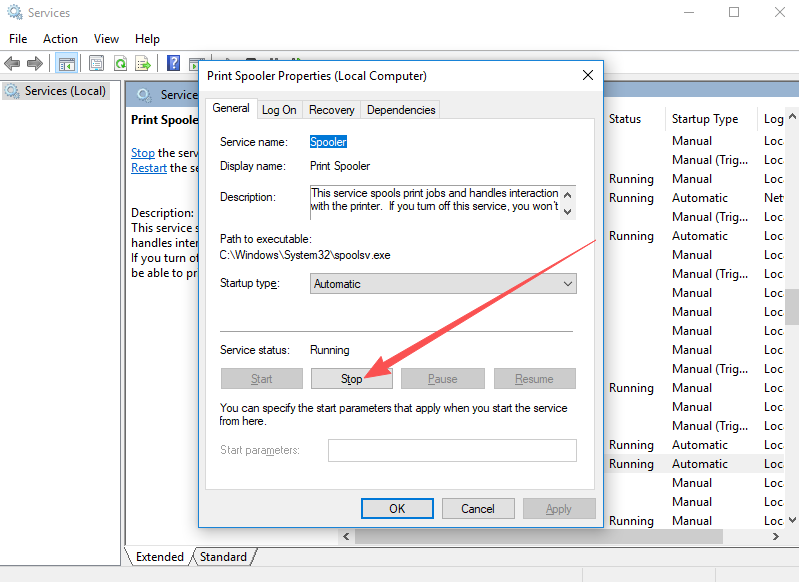
2. Find Print Spooler in the list, right-click it, and select Stop. Wait 5–10 seconds until the service fully stops.
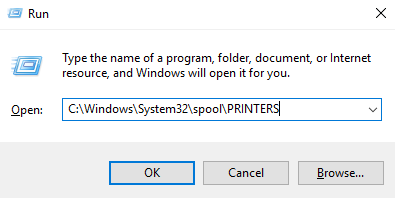
3. Press Win + R, type C:\Windows\System32\spool\PRINTERS, and press Enter. Delete all files inside this folder (do not delete the folder itself). This clears the corrupt print cache.
4. Return to the Services window, right-click Print Spooler, select Start, and set Startup type to Automatic so the service starts automatically after every reboot.
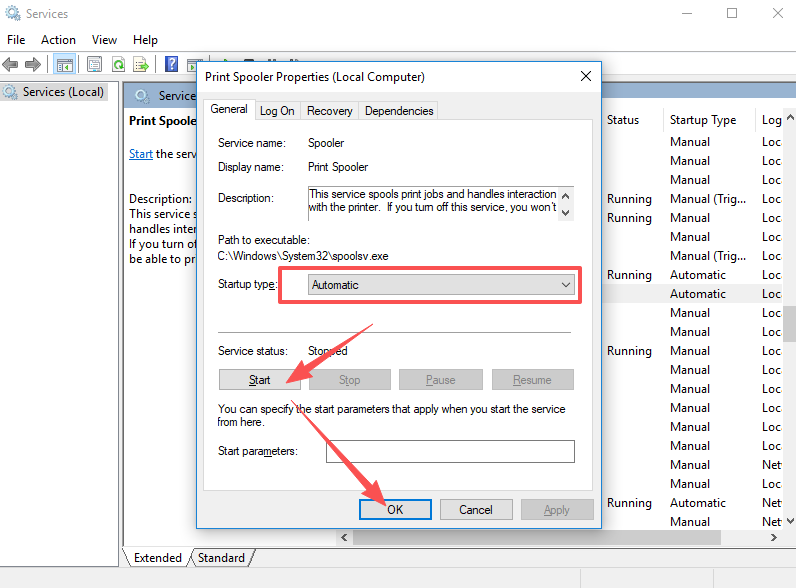
5. Restart the client PC and try connecting to the shared printer again.
Step 2 — Remove the Old Driver and Reinstall a Clean Driver
1. Open Control Panel → Devices and Printers. Right-click every failed or duplicate printer entry and select Remove device to clear all invalid connections.
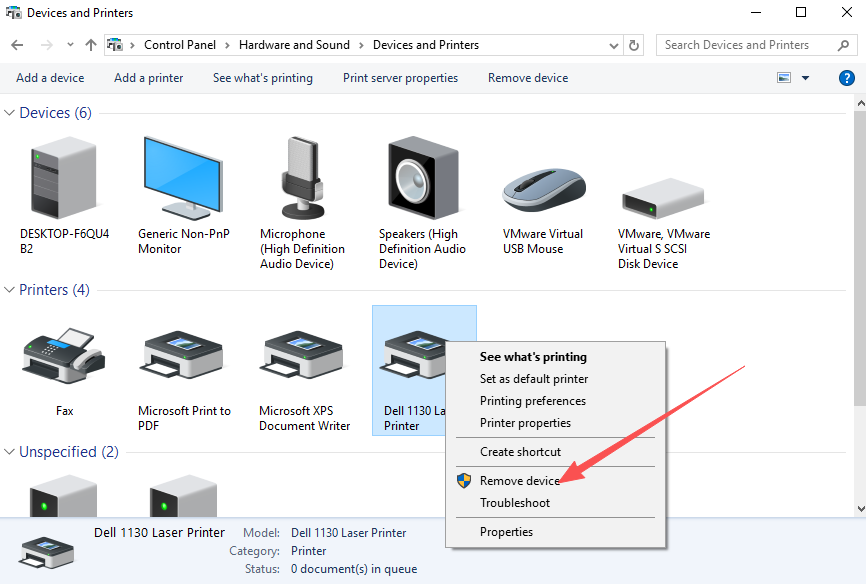
2. Press Win + R, type printui /s /t2, and press Enter to open Print Server Properties. Go to the Drivers tab.
3. Find the driver for your target shared printer, select it, click Remove, and in the dialog check Remove driver and driver package to delete all driver files completely.
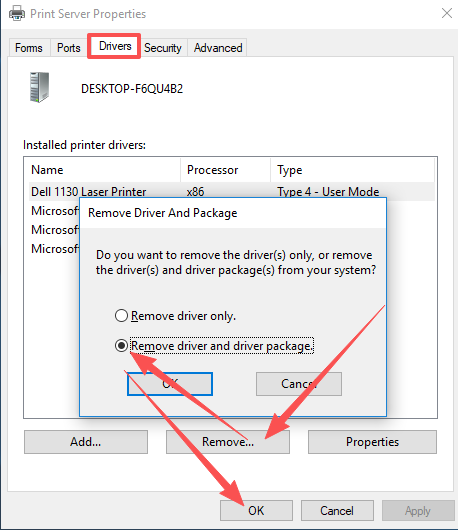
4. Restart the computer. Then download the correct full driver for your printer model from the manufacturer’s website and install it manually.
5. After the driver installs, add the shared printer again — use the host PC’s IP address for the most reliable connection (for example \\192.168.1.100).
Step 3 — Repair System Files
1. Search for cmd, right-click it, and select Run as administrator. Click Yes if a User Account Control prompt appears.
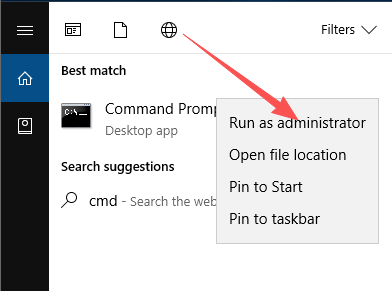
2. Type the following command and press Enter. Do not close the window while it runs:
sfc /scannow
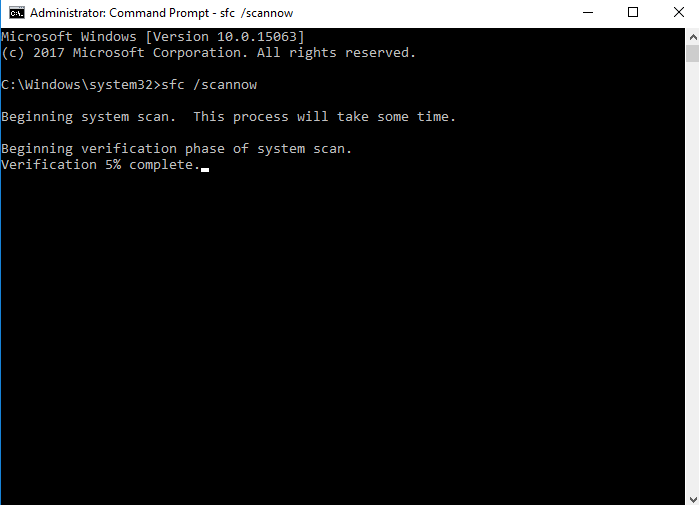
3. After the scan completes, restart the computer and try connecting to the shared printer.
Frequently Asked Questions
Q: What does “The handle is invalid” actually mean in error 0x00000006? In Windows, a “handle” is a unique identifier the system uses to track a resource — in this case, the printer connection. “Invalid handle” means Windows tried to create or reference a connection handle but failed, most often because the Print Spooler service or the printer driver is in a broken state.
Q: Other PCs connect fine but only mine shows error 0x00000006. What should I do? The problem is entirely on your client PC — the host PC and the printer are working normally. Run through Step 1 (restart Print Spooler) and Step 2 (reinstall the driver) on your client PC only. No changes are needed on the host.
Q: Ping succeeds and the network is fine, but I still get error 0x00000006. Why? A successful ping only confirms basic IP connectivity. Error 0x00000006 is caused by the Print Spooler service or driver — not by the network path. Focus on Step 1 and Step 2 rather than network settings.
Q: Will deleting drivers or modifying services affect my normal computer use? No. All steps in this guide are standard Windows printer troubleshooting operations. They only affect print-related services, drivers, and settings — not system core configuration, internet access, or other software. They are safe for both home and office environments.
Q: After fixing the error, how do I prevent it from coming back? Ensure the Print Spooler service is set to Automatic startup. Also keep your printer driver up to date and avoid special characters or spaces in the printer share name on the host PC.
Summary
Error 0x00000006 when connecting to a shared printer on Windows 10 or Windows 11 means Windows cannot generate a valid handle for the printer connection. It is not caused by printer hardware and does not require reinstalling Windows. Fix it in this order:
- Restart Print Spooler and clear the print cache — the most common fix
- Remove the old driver completely and reinstall a clean driver
- Run
sfc /scannowto repair corrupted system files