HP LaserJet M1005 Printer Driver Download and Installation Guide for Windows
The HP LaserJet M1005 is a classic black-and-white laser multifunction printer known for its reliability, low running costs, and ease of use — making it a long-time favorite for homes, small businesses, and retail shops. However, after reinstalling Windows, switching to a new PC, or experiencing driver file corruption, the HP M1005 driver can stop working, causing the printer to become unrecognized, unable to print, or losing its scan function.
This guide walks you through downloading the correct official HP M1005 driver, installing it step by step, and fixing the most common errors — no technical background required.
Why You Must Use the Official HP M1005 Driver
The official HP LaserJet M1005 driver has three critical advantages over third-party alternatives:
- Full system compatibility — Supports Windows 7, Windows 10, and Windows 11 in both 32-bit and 64-bit editions, as well as all macOS versions, with no compatibility conflicts.
- Complete functionality — Unlocks all three core functions: print, scan, and copy. Third-party lite drivers frequently omit the scan component.
- Safe and clean — No adware, no bundled software, no privacy risks or system slowdowns.
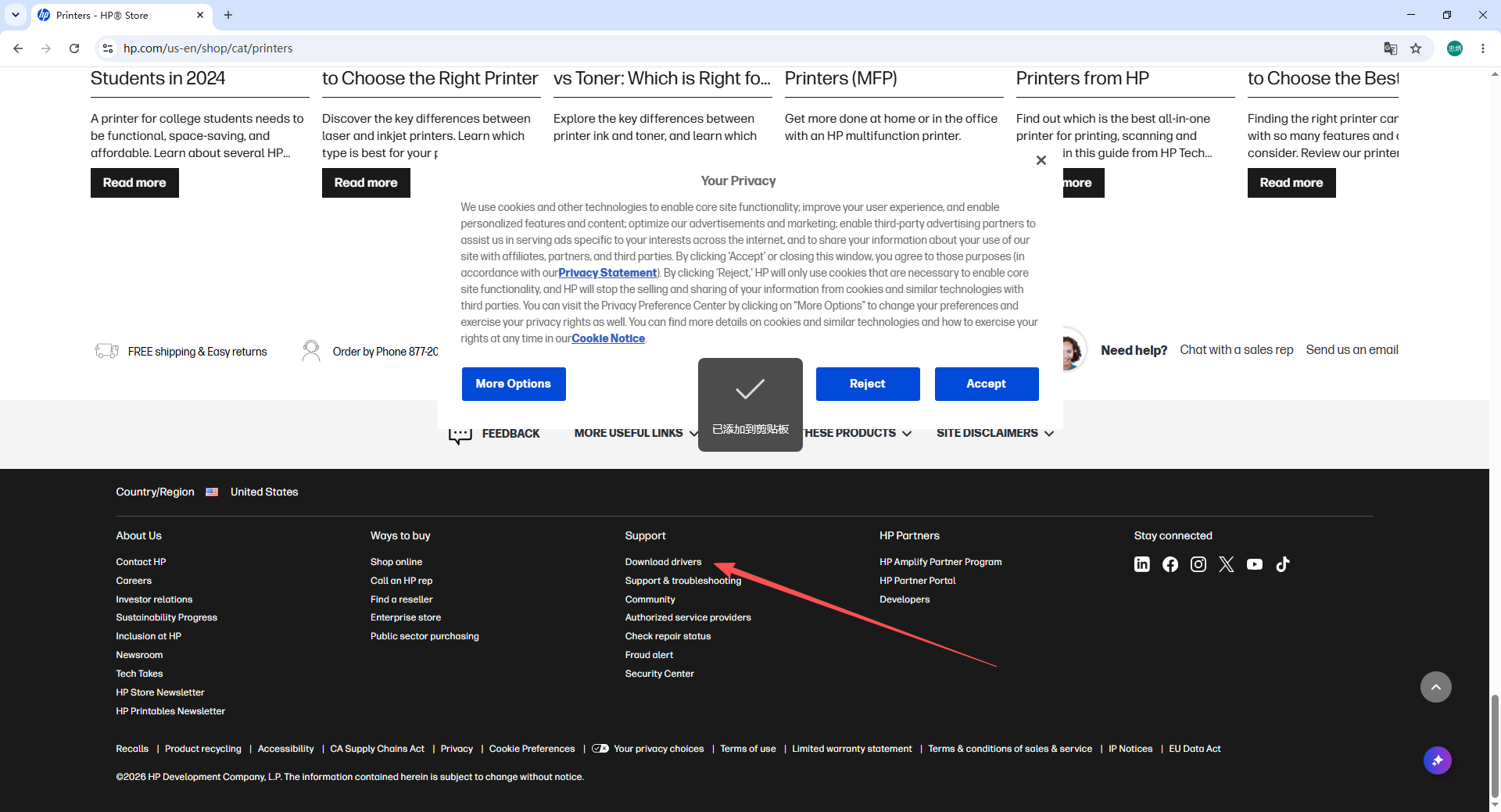
How to Download the HP M1005 Driver from the Official HP Website
1. Open the HP official support website and navigate to the driver download page.

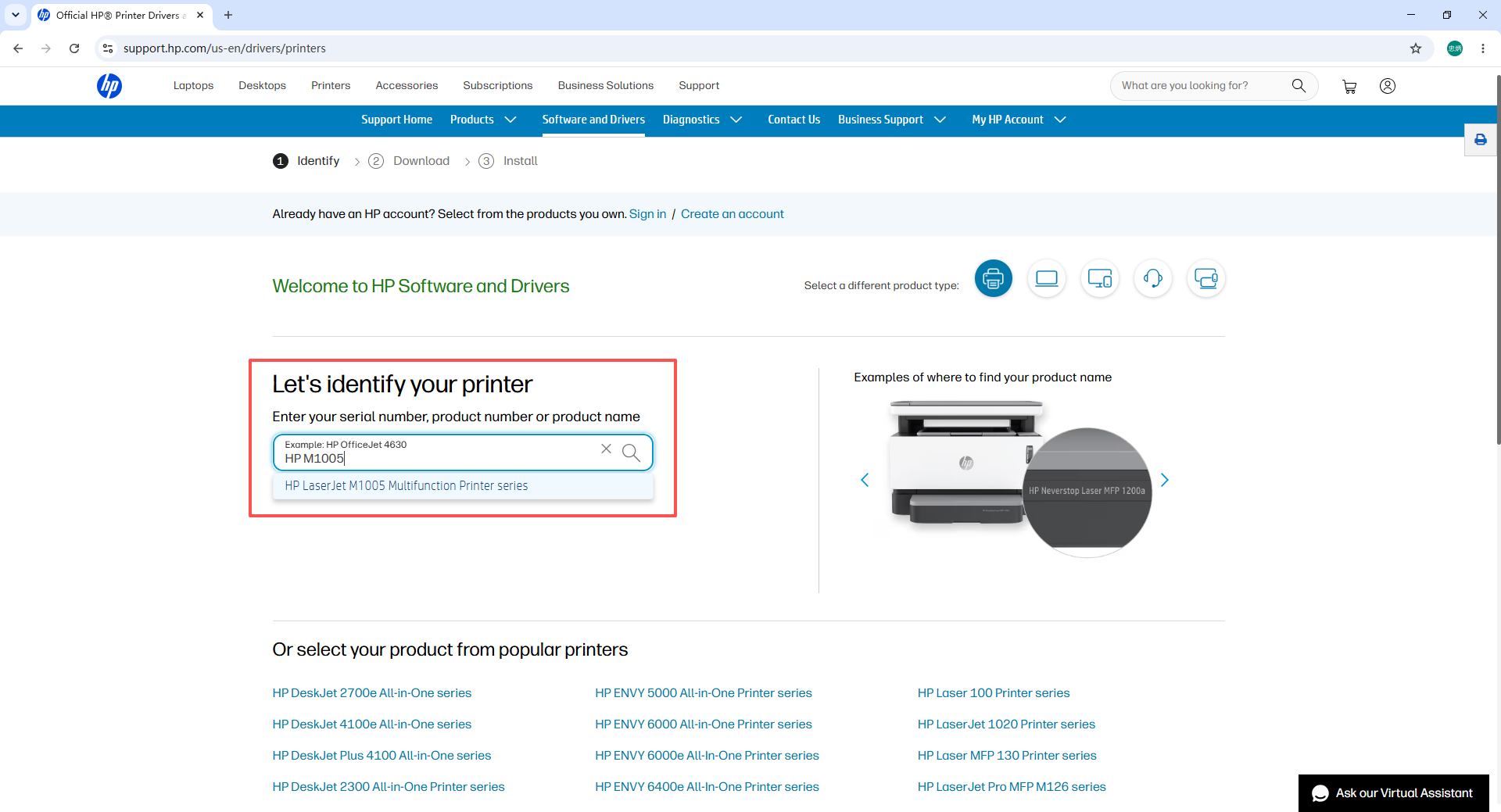
2. Type HP LaserJet M1005 in the search box and open the product support page.
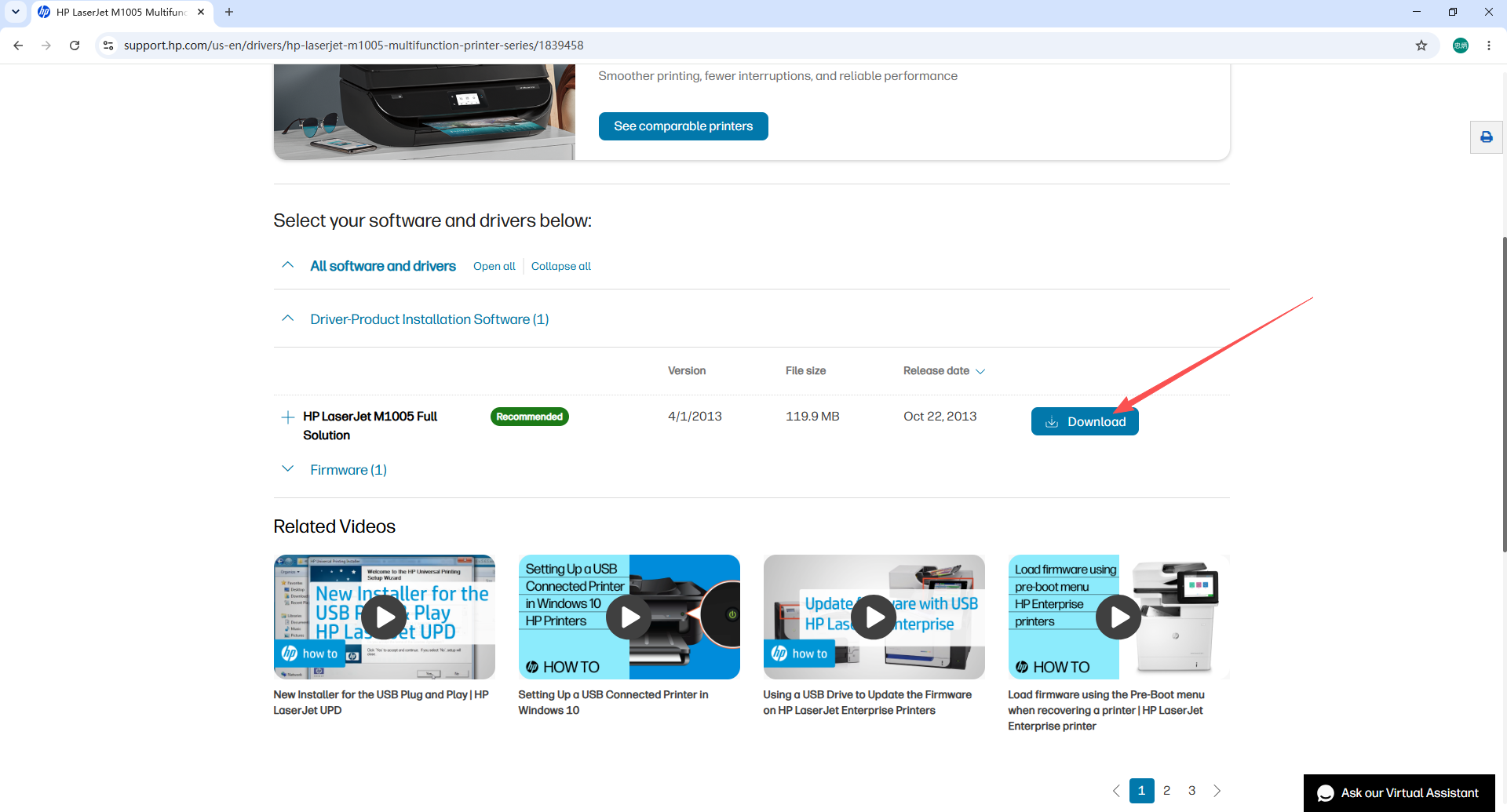
3. Filter by Basic Driver or Full Feature Software and Driver, select the version that matches your Windows version and architecture (32-bit or 64-bit), then click Download and save the file to your desktop.
Step-by-Step HP M1005 Driver Installation
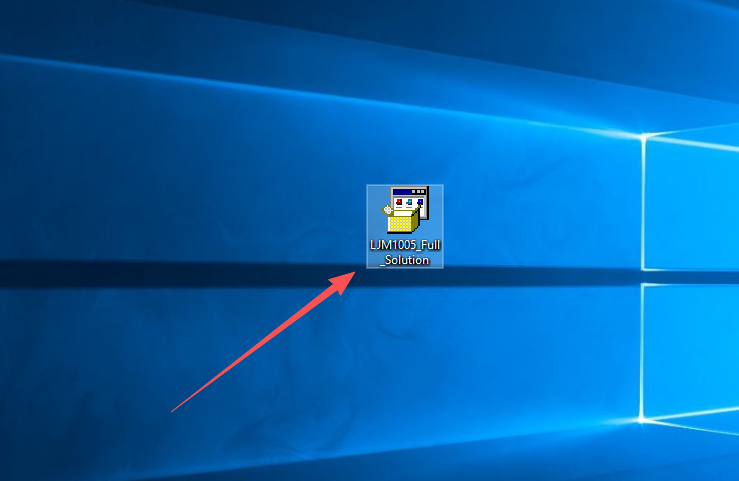
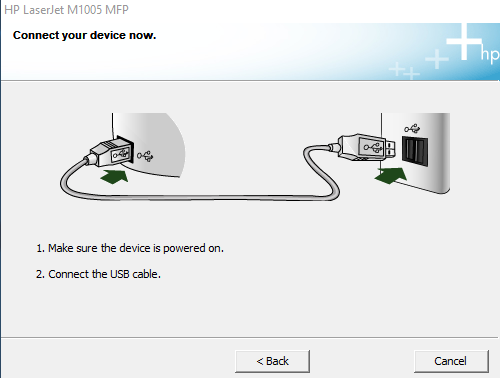
1. Save the downloaded HP M1005 driver package to your desktop. Temporarily disable your antivirus software to prevent it from blocking the installer. Connect the printer to your PC with a USB cable and turn the printer on.
2. Double-click the installer file to launch the setup wizard.
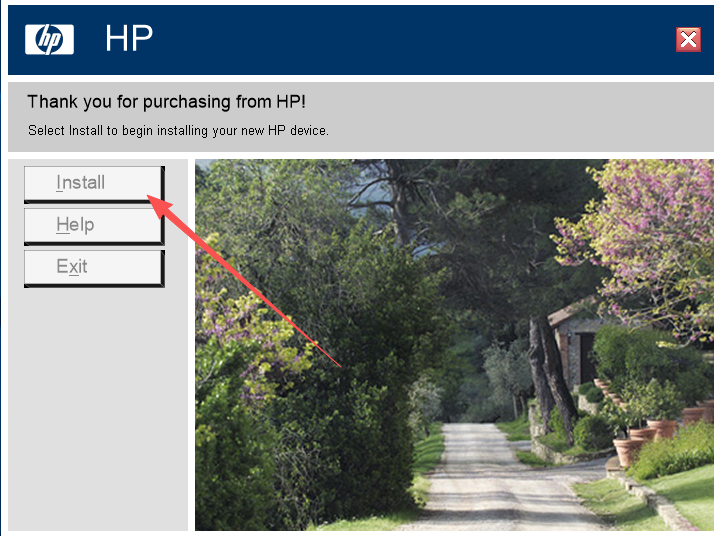
3. Click Install to begin the installation.
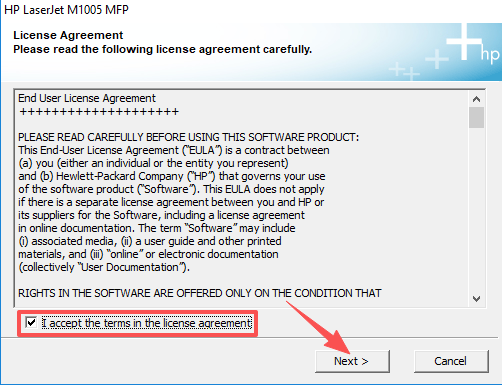
4. Select I accept to agree to the license agreement, then click Next.
5. The installer will automatically detect the HP M1005 printer connected to your PC via USB.
6. Follow the remaining on-screen prompts to complete the installation. Once finished, restart your computer if prompted, then print a test page to confirm the printer is working correctly.
Common HP M1005 Driver Installation Errors and Fixes
1. Driver incompatible with your Windows version Confirm whether your Windows installation is 32-bit or 64-bit (right-click This PC → Properties). Download the exact matching driver version from the HP website. Never mix 32-bit and 64-bit drivers.
2. Old driver conflict — installation fails Open Control Panel → Programs and Features, uninstall any existing HP LaserJet M1005 driver entries, restart the computer, then install the fresh driver.
3. USB connection not recognized Switch to a different USB port on the back of your desktop PC (rear ports have more stable power). Check whether the USB cable is damaged. Reconnect the cable firmly on both ends and try the installation again.
4. Installer package is corrupted Delete the downloaded file and re-download from the HP official website. Avoid resuming interrupted downloads, as partial files are often corrupted.
HP M1005 Still Not Printing After Driver Installation? Final Checklist
If the driver installed successfully but the printer still does not print:
- Set the HP M1005 as the default printer — Open Control Panel → Devices and Printers, right-click the HP M1005, and select Set as default printer.
- Clear the print queue — Right-click the HP M1005 in Devices and Printers, open the print queue, and cancel all pending jobs.
- Restart both the PC and the printer — Power off both devices, wait 30 seconds, then power them back on.
- Check the Print Spooler service — Press Win + R, type
services.msc, find Print Spooler, and make sure it is running and set to Automatic startup.
Frequently Asked Questions
Q: Which Windows versions does the HP LaserJet M1005 driver support? The official HP M1005 driver supports Windows 7, Windows 10, and Windows 11 in both 32-bit and 64-bit editions. HP does not provide an official driver for Windows 8/8.1, but the Windows 7 driver typically works on those versions.
Q: Can I use the HP M1005 scan function on Windows 10 or 11? Yes, but only if you install the Full Feature Software and Driver package rather than the basic driver. The full package includes the HP Scan software that enables the scan and copy functions.
Q: My PC does not recognize the HP M1005 at all — what should I do? First check the USB cable and try a different USB port. Then open Device Manager and look for an unknown device with a yellow warning icon. If found, right-click it, select Update driver, and point it to the downloaded driver folder. If the issue persists, restart both devices and reconnect.
Q: Is it safe to disable antivirus software during installation? Yes, temporarily. Some antivirus programs mistakenly flag printer driver installers as threats because they modify system files. Re-enable your antivirus immediately after the installation completes.
Q: Can the HP M1005 driver be used without a USB connection (Wi-Fi)? No. The HP LaserJet M1005 does not have Wi-Fi capability and must be connected via USB. It does not support wireless or network printing.
Summary
Installing the HP LaserJet M1005 driver is straightforward when you use the correct official driver and follow a clean installation process. The key steps are:
- Download the official driver from the HP support website — choose the version matching your Windows edition (32-bit or 64-bit)
- Disconnect any old driver if a previous installation exists
- Connect the printer via USB, run the installer, accept the agreement, and follow the wizard
- If problems persist, check the USB connection, clear the print queue, and verify the Print Spooler service is running