How to Download and Install Canon Printer Drivers — Official Guide for Windows
Canon printers are among the most widely used in homes, small businesses, and medium-sized offices — spanning inkjet all-in-ones, monochrome laser printers, and commercial digital multifunction devices. After reinstalling Windows, switching computers, experiencing driver file corruption, or upgrading to a new Windows version, the printer driver can stop working — causing the printer to become unrecognized, unable to print, or losing its scan function. This guide walks you through choosing the right driver, downloading it from the official Canon source, and completing the installation correctly.
Step 1 — Choose the Right Canon Driver Type
Before downloading, identify which driver version fits your needs. Selecting the wrong type can leave features missing even when you download from a legitimate source.
1. Full Feature Software and Driver — Includes print, scan, fax, and consumable monitoring components in a single package. Compatible with the MX fax-capable all-in-one series, the TS high-end inkjet series, and the MF laser all-in-one series. This is the recommended choice for office users who need full multifunction capabilities, and it is the most popular Canon driver option for most users.
2. Basic Driver — A lightweight package that includes only the core print driver with no additional software. The smaller file size uses less disk space and is suited for simple home printers that only need basic printing.
Canon clearly separates these two packages for most models, so you can download exactly what you need without having to install a bundled all-in-one suite.
Step 2 — Download the Canon Printer Driver from the Official Canon Website
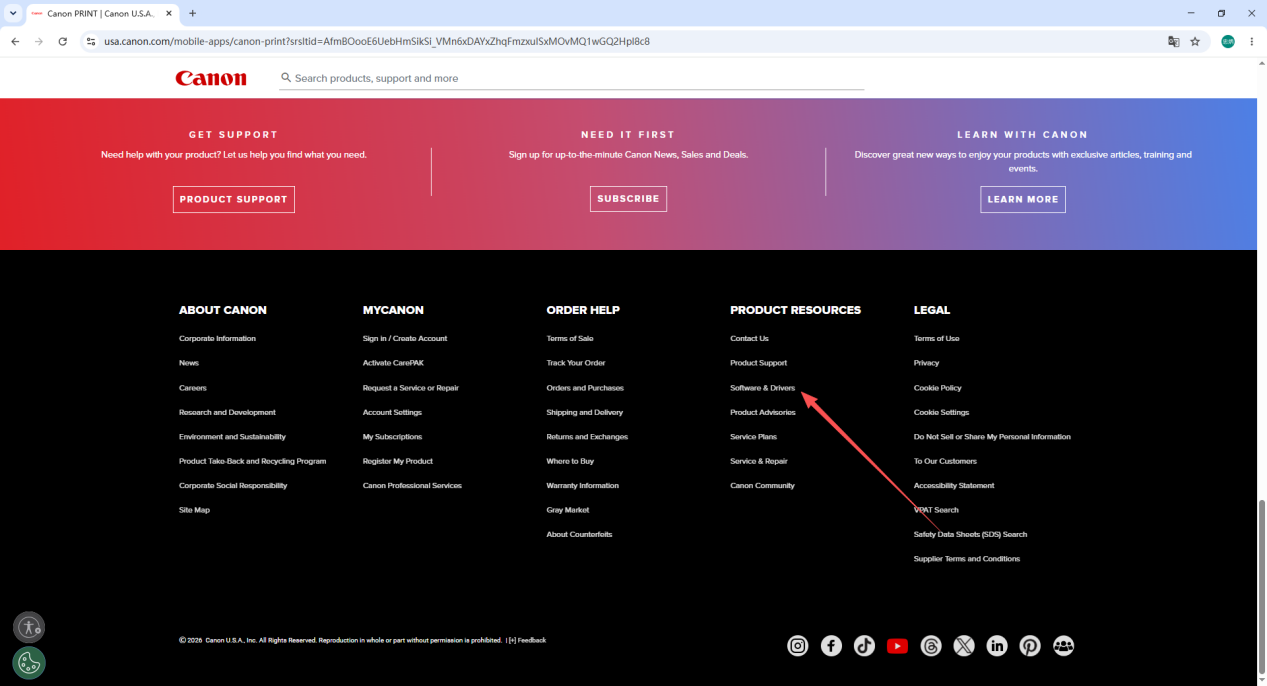
1. Open the Canon official product support page and navigate to the Software and Drivers section.

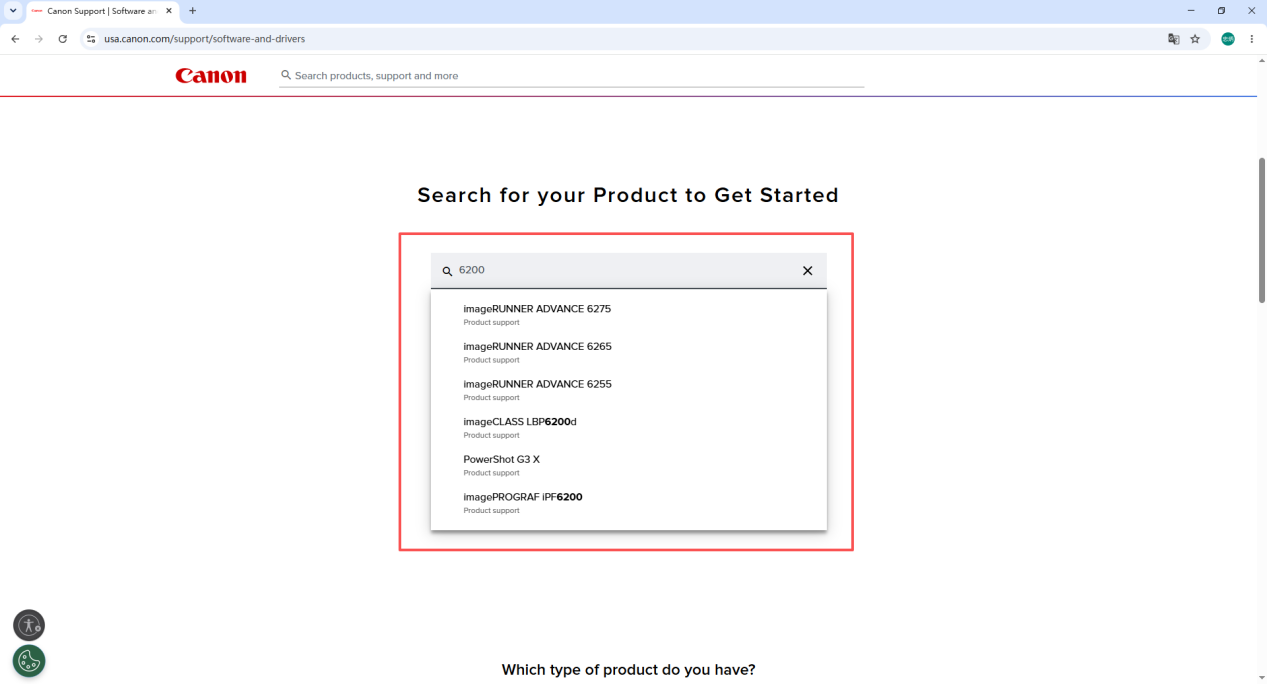
2. Enter your exact printer model number in the search box and confirm the result to open the product support page.
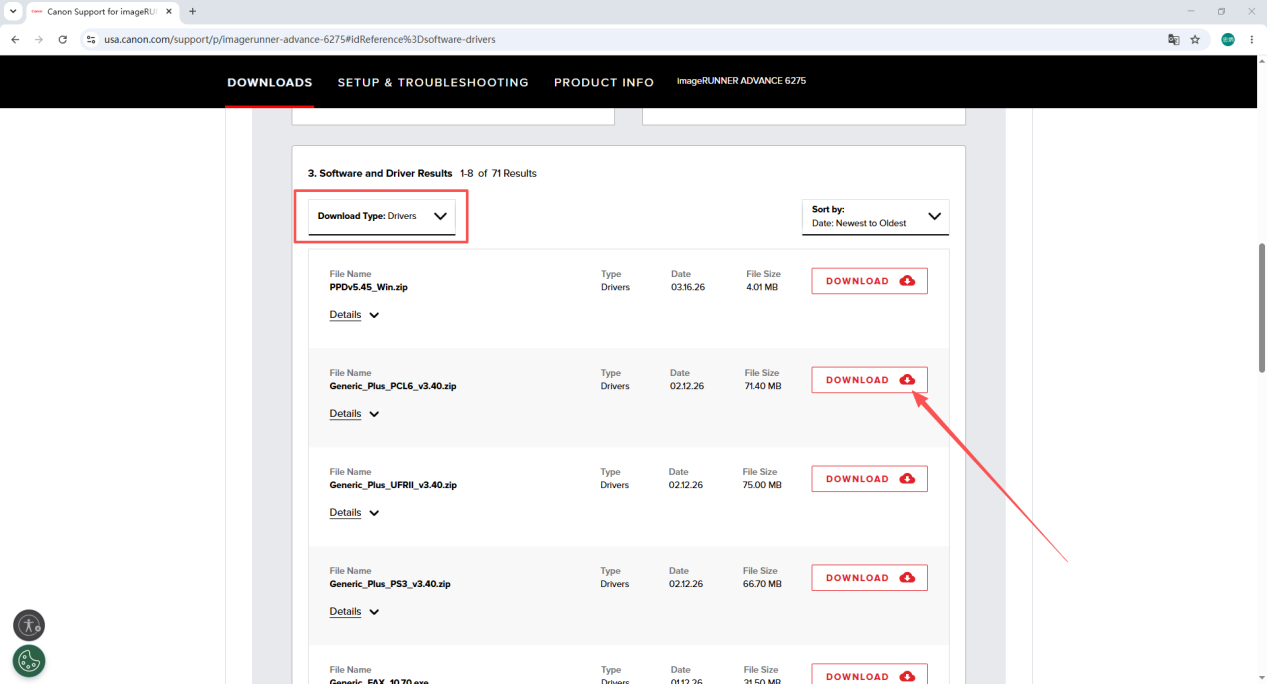
3. On the driver download page, set the download type to Driver, confirm the driver version you need, and click Download to save the file to your computer.
Step 3 — Install the Canon Printer Driver
1. Connect the Canon printer to your PC using the original USB cable and turn the printer on. Temporarily disable your antivirus or security software to prevent it from blocking the installer.
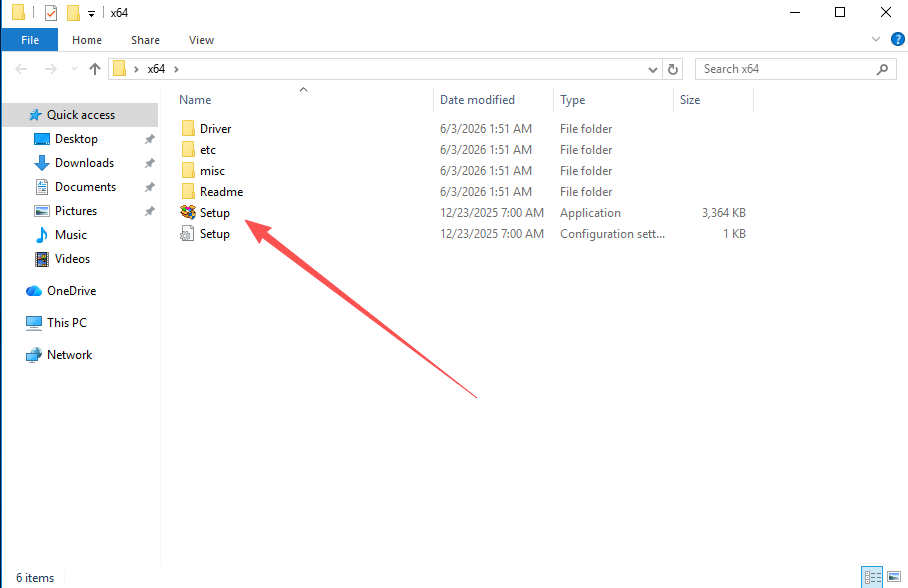
2. Locate the downloaded driver package, right-click and extract it to your desktop, then double-click the Setup file inside the extracted folder to launch the installer.
3. Read the software license agreement, check the box to accept it, and proceed with the default installation path — no need to change the destination drive manually.
4. The setup wizard will automatically detect the connected Canon hardware. Wait for the file deployment to complete. Once the installation success message appears, you can print a test page immediately to confirm everything is working.
Common Canon Driver Problems and Fixes
1. PC cannot recognize the printer hardware Switch to a rear USB port on your desktop PC — front ports frequently have insufficient power. Also check whether the original USB cable is worn or damaged, as cable deterioration is a common cause of connection failure. Replace the cable and reinstall the driver.
2. Driver installation shows a version incompatibility error Verify whether your Windows installation is 32-bit or 64-bit (right-click This PC → Properties). Return to the Canon website and download the driver package that matches your exact system architecture.
3. Printer shows as offline after installation and cannot print Open Control Panel → Devices and Printers, right-click your Canon printer, and set it as the default printer. Then open the print queue and clear all pending jobs before retrying.
4. Scan component is missing after installation You downloaded the Basic Driver, which does not include the scan module. Download the Full Feature Software and Driver package from the Canon website and install it to restore full scan functionality.
Canon Driver Download Tips by Printer Series
Canon’s product lineup spans a wide range of models. There are a few series-specific details worth noting when downloading your driver:
- TS series (home inkjet) — Driver packages for the TS series are relatively small and download quickly. The Full Feature driver adds wireless setup and cloud print functionality.
- MF series (business laser all-in-one) — Always download the Full Feature driver for MF series printers to unlock print, scan, copy, and (on applicable models) fax. The Basic Driver omits scan and copy components.
- MX series (fax all-in-one) — The MX series requires the fax component bundled in the Full Feature driver. Never use the Basic Driver for MX models — the fax and scan functions will not be available.
Before downloading, locate your printer’s full model number on the nameplate (label on the bottom or back of the device) and enter it exactly on the Canon support page to avoid downloading the wrong driver.
Important Tips for Canon Driver Installation
- Windows 11 compatibility: Canon provides Windows 11 drivers for most current-generation TS and MF models. If the Canon support page does not list a Windows 11 driver for your model, try the Windows 10 driver — it is typically compatible in most cases.
- After a Windows update: Windows updates sometimes replace or disable third-party printer drivers. If your Canon printer stops working after a Windows update, simply reinstall the driver following the steps above.
- Wireless printing setup: After installing the Full Feature driver, you can configure Wi-Fi printing through the Canon setup software. The Basic Driver does not include wireless configuration tools.
Frequently Asked Questions
Q: Which Windows versions does the Canon printer driver support? Most Canon drivers officially support Windows 7, Windows 10, and Windows 11 in both 32-bit and 64-bit editions. For Windows 8/8.1, the Windows 7 driver is generally compatible. Always check the Canon support page for your specific model to confirm supported OS versions.
Q: What is the difference between the Full Feature driver and the Basic Driver for Canon printers? The Full Feature driver includes print, scan, copy, fax (on applicable models), consumable monitoring, and wireless setup tools. The Basic Driver includes only the core print driver. If you need any function beyond basic printing, choose the Full Feature package.
Q: I cannot find a driver for my Canon model — what should I do? Make sure you are entering the complete model number (for example, PIXMA TS8320 or imageCLASS MF445dw) rather than just a partial name. On the Canon support page, double-check that the displayed OS matches your actual Windows version and architecture.
Q: Can I install the Canon driver without a USB connection? Yes, for Wi-Fi-capable models: the Full Feature installer includes a wireless setup option that lets you configure the printer over your home or office network without a USB cable. For USB-only models, a USB connection is required during initial installation.
Q: My Canon printer worked fine but stopped after a Windows update. What should I do? Reinstall the Canon printer driver. Windows updates sometimes overwrite printer drivers with generic alternatives. Download the latest driver for your model from the Canon support website, run the installer, and the printer will return to full functionality.
Summary
Getting your Canon printer working correctly comes down to two key steps: choosing the right driver type and downloading it from the official Canon source. Follow this checklist:
- Choose the driver type — Full Feature for multifunction use (scan, fax, wireless); Basic for simple printing only
- Download from the Canon official website — enter your exact model number, confirm the OS version, and click Download
- Connect via USB, disable antivirus temporarily, extract the package, and run the Setup file
- If errors occur — check USB port and cable, verify OS architecture match, clear old drivers, or switch to the Full Feature package if scan is missing